Best AI Text Expander Tools in 2026: Tested and Compared


Founder & CEO, Slashit App
You retype the same reply more times a week than you’d like to admit. Maybe it’s a proposal email, a support answer, or a sales follow-up that only needs a name and a date swapped out.
An AI text expander fixes that. It turns a short trigger, like /followup, into a full block of text, then lets you rewrite, shorten, or personalize that text with AI right where you’re typing.
This guide compares the best AI text expander tools in 2026, including Slashit, Text Blaze, Lightning Assist, Snippety, typedesk, TextExpander, and Espanso. You’ll see what each tool does well, where it falls short, and which one fits how you work, whether that’s from a browser tab, a Mac terminal, or three different apps before lunch.
Slashit tops this list because it’s the only tool here that bundles a text expander, an AI rewriter, and a clipboard manager into one app, with zero integrations needed to get started. Keep that in mind as you read on, since it changes how many separate tools you actually need.
What Is an AI Text Expander?
An AI text expander is software that replaces a short trigger, like /email, with a full block of text, then lets you adjust that text with AI instead of retyping it by hand every time.
Classic text expanders, the kind that have been around since the 2000s, only handle half that job. Type the trigger, get the exact same snippet, every time. An AI text expander adds a second layer on top of that: dynamic fields that fill themselves in, and generative rewriting that can shorten a paragraph or adjust wording right inside the text field you’re using.
That difference matters more in 2026 than it did five years ago. Email volume, Slack threads, and support tickets have all grown, and a fixed snippet can’t keep up when every reply needs a slightly different tone. So the tools worth using now combine both: instant expansion and on-demand AI polish.
Not every tool labeled “AI text expander” uses AI the same way, and that distinction shapes almost every recommendation below.
How We Evaluated These Tools
We judged each tool on five things: real AI capability, how many platforms it covers, how fast you can get your first snippet working, pricing, and whether it holds up across different apps instead of just one browser tab.
- AI capability: generates or rewrites text, or only stores fixed snippets
- Platform coverage: Mac, Windows, Linux, browser, or mobile
- Setup time: configuration required before your first working shortcut
- Pricing: free tier, one-time purchase, or ongoing subscription
- Reliability: works the same in Gmail, Slack, and your terminal, not just Chrome
We checked pricing and features for every tool in August 2026, so expect small changes later in the year. With that framework set, here’s how the seven tools stack up.
The Best AI Text Expander Tools in 2026, Compared
A quick side-by-side view sets up the details below, before we get into what each tool is actually like to use.
| Tool | Best For | Platforms | AI Features | Starting Price |
|---|---|---|---|---|
| Slashit | All-in-one expansion, rewriting, and clipboard history | Mac, Windows | AI rewrite, dynamic templates, clipboard history | Free, then $5/month |
| Text Blaze | Browser-based workflows | Chrome, Edge, Windows, Mac | Basic AI assist, dynamic fields | Free tier, Pro from $2.99/month |
| Lightning Assist | Cross-platform AI and voice | Windows, Mac, Linux | AI commands, voice-to-text | From $5.99/month |
| Snippety | Native Mac and iOS use | macOS, iOS, iPadOS | Custom AI API integration | Free tier, Pro from a low monthly fee or lifetime purchase |
| typedesk | Support and sales teams | Chrome, Firefox, Windows, Mac | ChatGPT-powered expansion | Free plan, Premium from $8/user/month |
| TextExpander | Large teams with admin needs | Windows, Mac, iOS, Android, Chrome | Scripting, limited AI | From $3.33/month |
| Espanso | Free, open-source use | Windows, Mac, Linux | None built-in | Free |
Now let’s break down what each one is actually like to use, starting with the tool built to replace the other six.
1. Slashit: Best All-in-One AI Text Expander
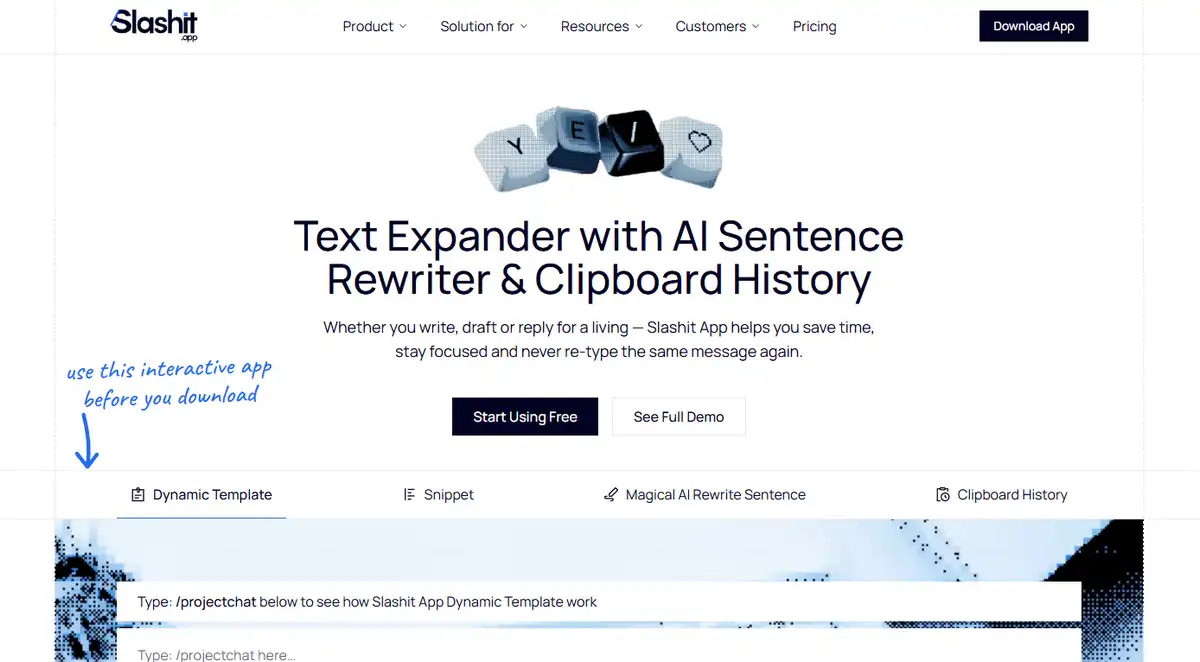
Slashit is the best pick if you want one app to replace a text expander, an AI writing tool, and a clipboard manager, instead of paying for three.
Open Slashit, type a short trigger like /meeting, and a full dynamic template drops into whatever you’re writing, already filled with a date, a name, or any field you set up ahead of time. What sets Slashit apart is what happens next.
Highlight the result and run AI rewrite to shorten it, soften the tone, or turn a rough draft into something you’d actually send, without leaving the app or opening a second tool.
Slashit also keeps a running clipboard history, so the last few things you copied stay one shortcut away instead of vanishing the moment you copy something new. For straightforward, no-frills replacements, plain snippets still work the way they always have, just without the AI layer attached.
Take a freelancer who sends five proposal variations a week. Type the trigger, let the template fill in the client’s name and project scope, then run AI rewrite to match that client’s tone. What used to take fifteen minutes now takes two, and watching the template fill itself in feels less like software and more like someone finishing your sentence for you.
Slashit works on both Mac and Windows, and the free plan includes 50 AI credits a month with no credit card required, enough for most people to genuinely test it before paying anything.
What works well:
- One app instead of three or four separate subscriptions
- AI rewrite runs inline, no copying text into a separate chatbot
- Free plan is permanent, not a trial that expires
- Built for freelancers, founders, and support teams alike
Where it falls short:
- Mac and Windows only, no native Linux or mobile app yet
Slashit earns the top spot because it solves the actual problem, too many separate apps for one workflow. If your entire day happens inside Chrome, though, the next tool on this list might fit better.
2. Text Blaze: Best for Browser-Based Workflows
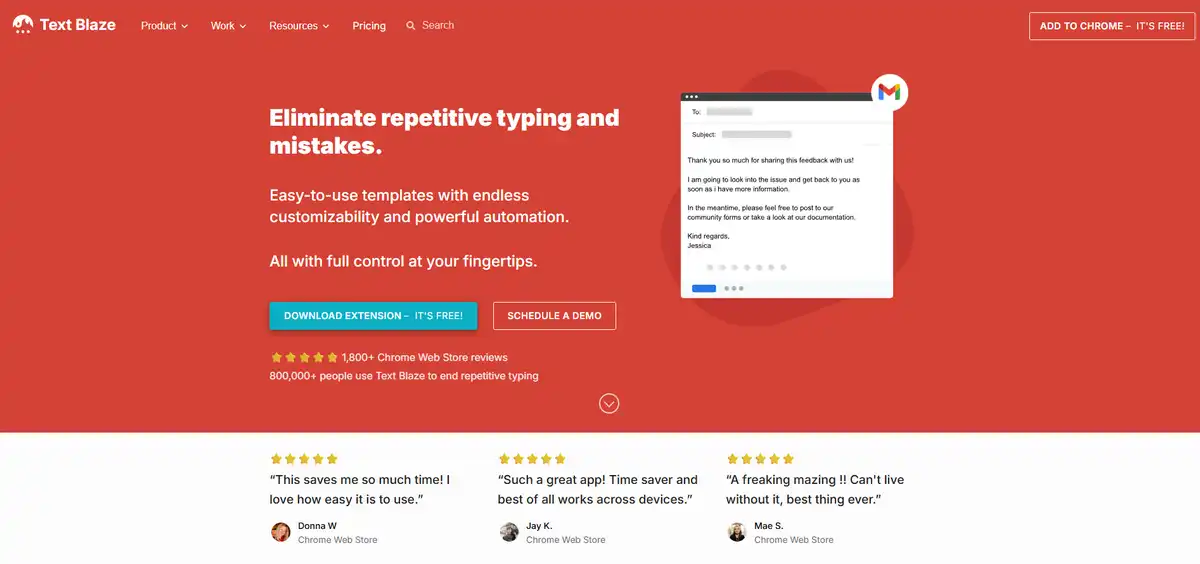
Text Blaze fits you best if nearly all your writing happens inside Chrome or Edge.
Text Blaze started as a browser extension, and it still shows. Snippets support dynamic placeholders, form fields, and conditional logic, so a single template can branch based on what you type into it. The free tier includes 20 snippets, which covers a surprising amount of daily use before you’d need to upgrade.
Desktop apps for Windows and Mac exist too, but they’re separate installs from the browser extension. If most of your day happens in Gmail or another browser tool, that gap barely matters. Split your time between a browser and native apps like a code editor or Slack’s desktop client, and it shows up fast.
What works well:
- Generous free tier with real functionality, not just a demo
- Dynamic fields and conditional logic handle complex templates
- Mature, well-tested Chrome extension
Where it falls short:
- No Linux support, and no built-in AI commands beyond basic assist
- Desktop and browser versions run as separate apps
Text Blaze earns its spot for browser-first workflows, but the moment you step outside Chrome, you’ll feel the seams. Lightning Assist takes a different approach entirely, built for people who live across operating systems, not just tabs.
3. Lightning Assist: Best for Cross-Platform AI and Voice
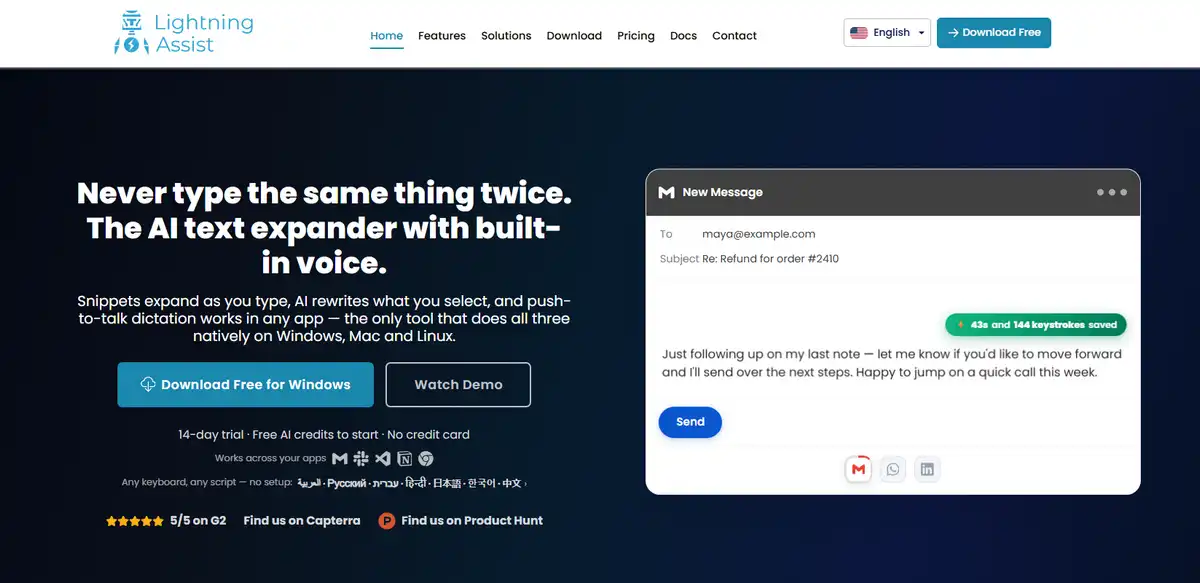
Lightning Assist is the strongest choice if you want AI commands and voice-to-text working the same way on Windows, Mac, and Linux.
Lightning Assist expands snippets across desktop apps, including terminals and IDEs, which is rare among tools built mainly for office writing. Push-to-talk voice-to-text sits alongside text expansion, so you can dictate a reply and still trigger a snippet mid-sentence.
Pricing starts at $5.99 a month, and that includes AI credits bundled into the subscription rather than sold separately. For Windows users specifically, it’s one of the few options that pairs AI commands with true cross-platform reach.
What works well:
- Voice-to-text and AI commands built into one workflow
- True Windows, Mac, and Linux support, not just Windows with a Mac afterthought
- AI credits included in the base subscription
Where it falls short:
- No free plan, and monthly pricing adds up for light users
Furthermore, if voice input matters less than a clean, all-in-one writing workflow, the next few tools trade that feature for something else.
4. Snippety: Best for Mac and iOS Power Users
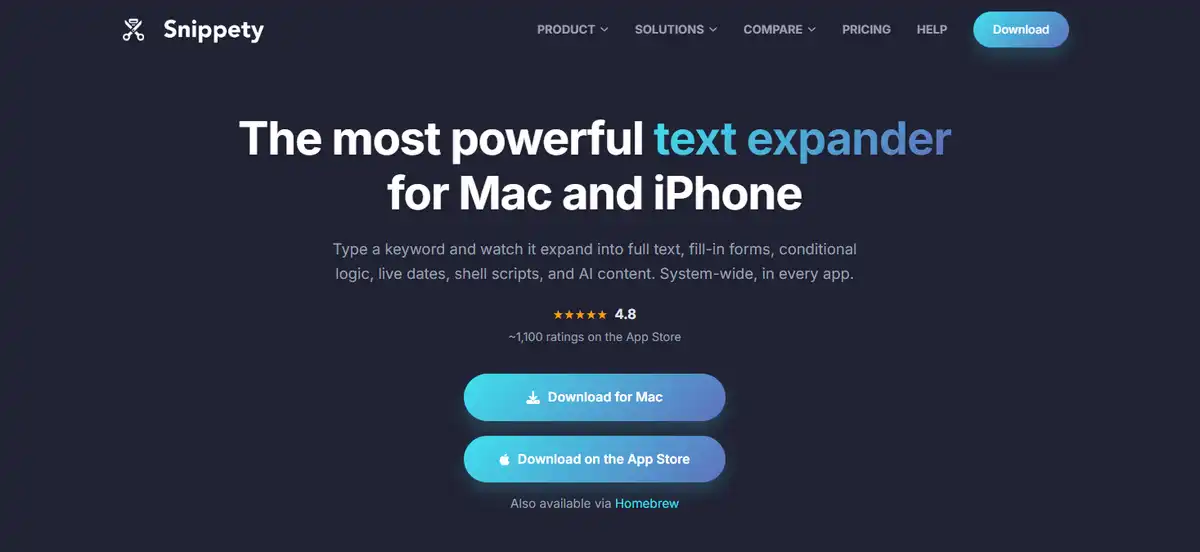
Snippety works best if you’re fully inside the Apple ecosystem and want a native app instead of a browser extension.
Snippety runs on macOS, iOS, and iPadOS, with a dedicated Snippety Keyboard that brings your snippets into any app on your phone or tablet, not just Mail or Messages. Placeholders go deep here: fill-in fields, dropdowns, calculated dates, and a custom AI API integration for generating text from a template instead of typing it out.
Data stays local or synced through your own iCloud account, with no third-party servers involved. A free tier lets you try the core features, and Snippety Pro comes as either a low monthly subscription or a one-time lifetime purchase, so you’re not locked into paying forever.
What works well:
- True native Apple app, not a wrapped web view
- Local or iCloud storage, no forced cloud account
- Lifetime purchase option available
Where it falls short:
- Mac and iOS only, no Windows or Linux version
If you’re outside the Apple ecosystem, typedesk picks up the slack for teams that need cross-browser support.
5. typedesk: Best for Support and Sales Teams
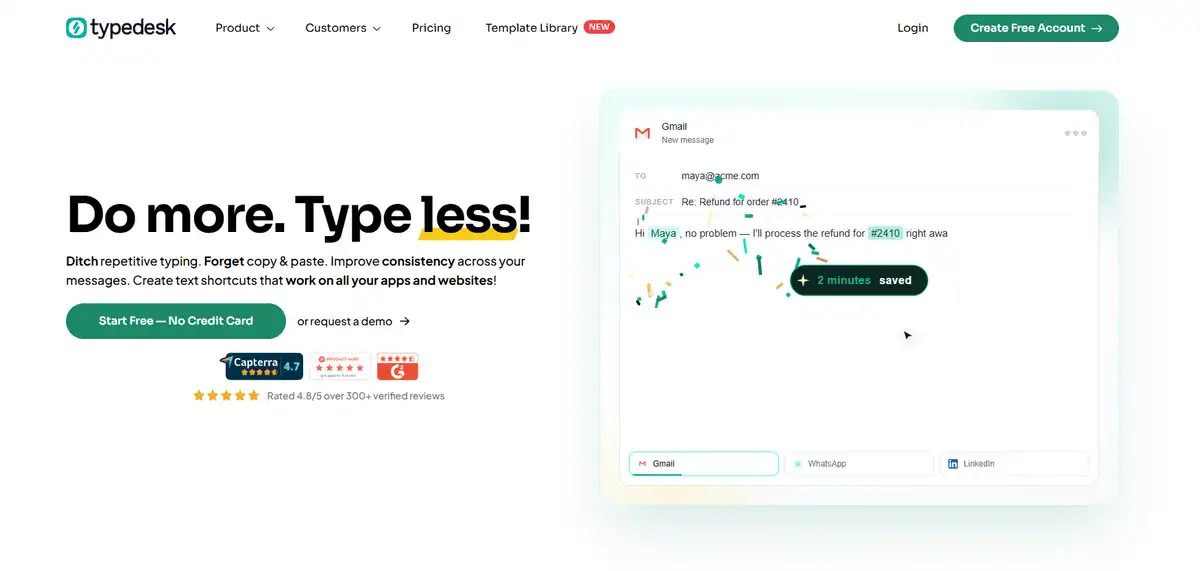
typedesk is the right call if you’re standardizing responses across a support or sales team, not just typing faster yourself.
typedesk works as a browser extension across Chrome and Firefox, plus desktop apps for Windows and Mac, so a shared snippet library follows your team no matter which browser someone prefers. Dynamic variables handle personal touches, like a customer’s name or order number, while the ChatGPT-powered prompt expansion feature turns a short instruction into a fuller, on-brand response.
Team sharing is where typedesk earns its keep. A support lead builds and updates a canned-response library once, and every agent pulls from the same source instead of copying outdated templates from an old thread.
What works well:
- Genuine cross-browser support, including Firefox
- Team-wide template sharing built in from the start
- Free plan available for individual use
Where it falls short:
- Premium plans start around $8 per user a month
If your team has outgrown typedesk’s shared libraries and needs enterprise-grade admin controls, TextExpander is the more established option.
6. TextExpander: Best for Large Teams
TextExpander suits large organizations that need centralized admin control more than they need heavy AI features.
TextExpander has been around longer than most tools on this list, and it shows in its platform reach: Windows, Mac, iOS, Android, and Chrome, all syncing through the cloud. JavaScript scripting inside snippets handles advanced logic, which appeals to technical teams that want more control than a fill-in-the-blank template offers.
Admin tools are the real draw for larger companies. Shared snippet libraries, usage reporting, and centralized management keep a support or sales team’s messaging consistent across dozens of people. Pricing starts around $3.33 a month per user, though costs climb fast once you’re outfitting a full team.
What works well:
- Broadest platform coverage on this list, including mobile
- Strong admin and reporting tools for large teams
- Long track record and mature product
Where it falls short:
- AI features are limited compared to newer, AI-first tools
- No free plan, only paid tiers
Similarly, if budget matters more than admin features, Espanso closes out this list as the only free option here.
7. Espanso: Best Free, Open-Source Option
Espanso is the best choice if you want a fully free, open-source text expander and don’t mind editing a config file.
Espanso runs on Windows, Mac, and Linux, and it costs nothing, with no paid tier hiding behind the free version. Configuration happens through YAML files rather than a visual editor, so setup takes longer than the point-and-click tools above, but it also means Espanso supports regex triggers and shell script extensions that most closed-source tools don’t offer.
No built-in AI exists here, and no graphical snippet editor either. That trade-off suits developers who already live in config files, and makes far less sense for someone who just wants to reply to emails faster.
What works well:
- Completely free, GPL-licensed, and open to inspection
- Regex triggers and shell scripts for advanced automation
- Runs on Linux, which most competitors skip entirely
Where it falls short:
- No AI features and no visual snippet editor
- Steeper learning curve than any other tool here
That’s the tradeoff of ranking tools by features instead of by how they behave once you’re relying on one every day. So the real question isn’t which tool has the most features, but which one fits your specific reason for using a text expander in the first place.
AI Text Expander vs. Traditional Text Expander: What’s the Real Difference?
The real difference is generative ability. A traditional text expander plays back the exact same snippet every time, while an AI text expander can rewrite, extend, or adjust that snippet on the spot, based on context you give it.
Static snippets are reliable in a narrow way. Type /addr, get your address, every time, with zero surprises. That predictability is what you want for a mailing address or a boilerplate legal disclaimer, where wording should never change.
AI text expanders add a layer static tools can’t touch. Instead of one fixed output, you get a starting point you can shorten, soften, formalize, or rewrite entirely, without opening a separate AI chat tool and copying text back and forth.
Espanso and older versions of TextExpander sit firmly on the traditional side. Slashit, Lightning Assist, and typedesk lean AI-first, building the rewriting step directly into the expansion itself.
Moreover, the best fit usually isn’t one extreme or the other. Most people want static snippets for things that never change, like a signature, and AI-powered rewriting for things that do, like a sales follow-up that needs a different tone for every client. That’s why an all-in-one tool tends to outperform a single-purpose one for daily use.
How to Choose the Right AI Text Expander for You
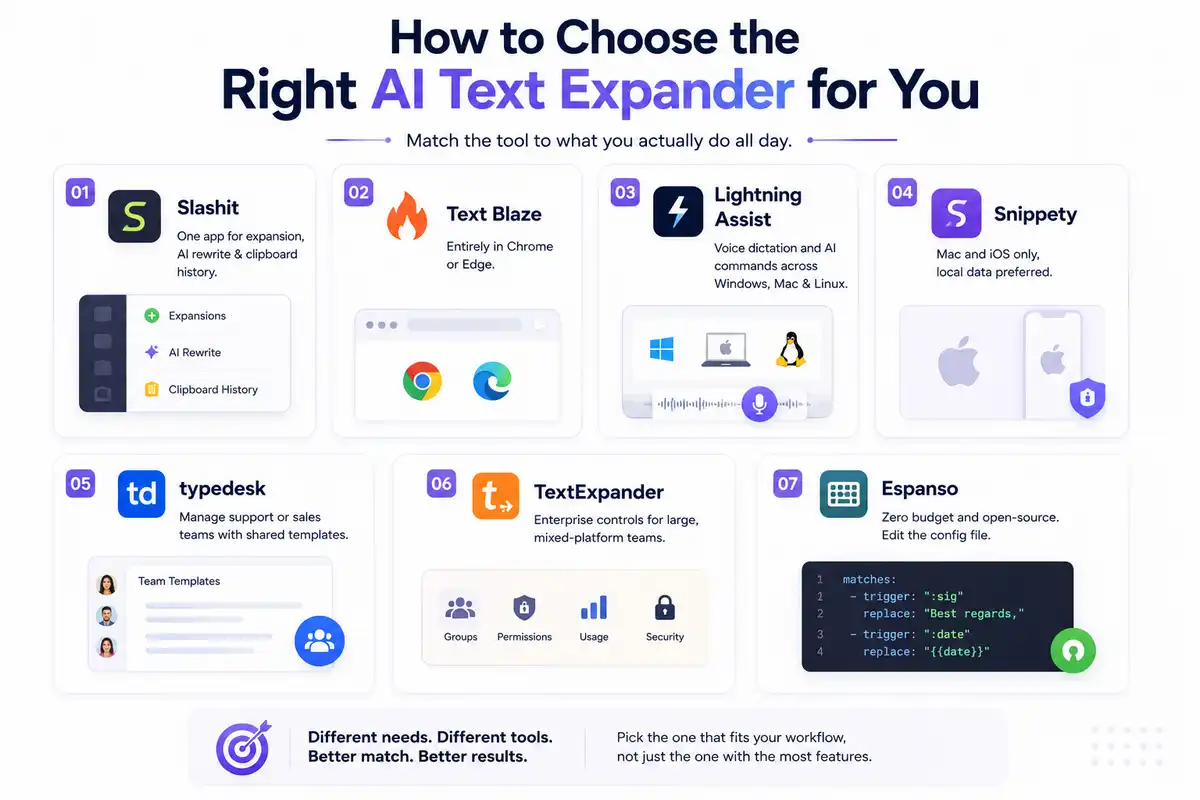
Match the tool to what you actually do all day, not to which one has the longest feature list.
- One app instead of three or four: Slashit covers expansion, AI rewriting, and clipboard history together, useful for freelancers juggling several client voices at once.
- Entirely in Chrome or Edge: Text Blaze is the simplest browser-first pick.
- Voice dictation and AI commands across Windows, Mac, and Linux: Lightning Assist covers that combination best.
- Mac and iOS only, local data preferred: Snippety fits closely.
- Managing a support or sales team that needs shared templates: typedesk was built for exactly that.
- Enterprise admin controls across a large, mixed-platform team: TextExpander has the longest track record.
- Zero budget and comfortable editing a config file: Espanso is the only fully free, open-source option here.
None of these picks are wrong, they just solve different versions of the same problem, which is also where most buying mistakes happen.
Common Mistakes When Choosing a Text Expander
The most common mistake is picking a tool on price alone and only discovering the platform gaps after committing a year of typing to it.
- Choosing on price alone. The cheapest plan often skips the platform you actually need, like Linux or mobile.
- Assuming “AI text expander” means it writes from scratch. Most tools still need a trigger and a template. AI usually handles the rewriting, not the whole first draft.
- Not checking whether it works outside the browser. A Chrome-only tool won’t help you inside a terminal or a mobile keyboard.
- Ignoring where your data lives. Cloud sync is convenient, but sensitive client information is often safer with local or iCloud storage.
- Skipping the free trial. Committing to annual billing before testing daily use is how most people end up switching tools twice in one year.
Avoiding those mistakes narrows the list fast. What’s left are the practical questions most people still have before they pick one.
Frequently Asked Questions
What is the best AI text expander in 2026?
Slashit is the best overall pick for most people, since it combines text expansion, AI rewriting, and clipboard history in one app for Mac and Windows. Text Blaze suits browser-only workflows, and Lightning Assist fits users who need voice dictation across three operating systems.
Are AI text expanders safe to use for sensitive text?
Most reputable tools encrypt data in transit, but the safer question is where your snippets get stored. Local-first tools like Snippety and Espanso keep data on your device, while cloud-based tools sync everything to a company’s servers. Check a tool’s storage policy before typing anything confidential.
Can I use an AI text expander on both Mac and Windows?
Yes. Several tools here cover both operating systems, including Slashit, Text Blaze, Lightning Assist, and TextExpander. Snippety stays Mac and iOS only, and Espanso adds Linux support on top of Mac and Windows.
Is there a free AI text expander?
Yes. Slashit, Text Blaze, typedesk, and Snippety all offer permanent free tiers with real functionality, not just a short trial. Espanso is entirely free with no paid version at all, since it’s open source.
What’s the difference between a text expander and an AI writing assistant?
A text expander is trigger-based. You type a short shortcut, and it expands into set text. An AI writing assistant generates text from a prompt, with no saved trigger behind it. AI text expanders sit in between, pairing a saved trigger with the option to rewrite the result using AI, which is why tools like Slashit blend both categories into one.
Do AI text expanders work inside Slack, Gmail, and other apps, or just browsers?
That depends on the tool. Browser extensions like Text Blaze work inside any web app, but may not reach native desktop apps. Desktop-based tools like Slashit, Lightning Assist, and TextExpander expand text system-wide, so they work in Slack’s desktop app, a code editor, or a PDF form.
Final Verdict
If you only remember one thing from this list, remember this: the best AI text expander in 2026 is the one that stops you from opening three other apps to finish one reply.
Text Blaze suits browser workflows, Lightning Assist excels at voice and cross-platform AI, Snippety idealizes local Apple storage, typedesk fits support and sales teams. TextExpander serves large enterprise admins, and Espanso is best for a free, open-source config-based tool.
That said, Slashit remains the pick for most people reading this, precisely because it doesn’t ask you to choose between a text expander, an AI rewriter, and a clipboard manager.
It just does all three, on both Mac and Windows, starting with a free plan that includes 50 AI credits a month and no credit card required. Check current pricing here or download it and see how it fits your own workflow.
// more articles
 Productivity
 10 Best Grammarly Alternatives in 2026: Free and Paid
Comparing the best Grammarly alternatives for 2026 by price, AI customization, and use case, so you can find the right fit fast and skip the guesswork.
 Productivity
 Text Expander for Founders: Save Hours Every Week
A text expander for founders turns investor updates, cold outreach, and hiring replies into one hotkey. Compare tools, get templates, and set up in minutes.
 Productivity
 Text Expander for Managers: Stop Retyping the Same Messages
A text expander for managers turns repeated messages into instant shortcuts. See how tools like Slashit save managers hours every week.

// blog updates