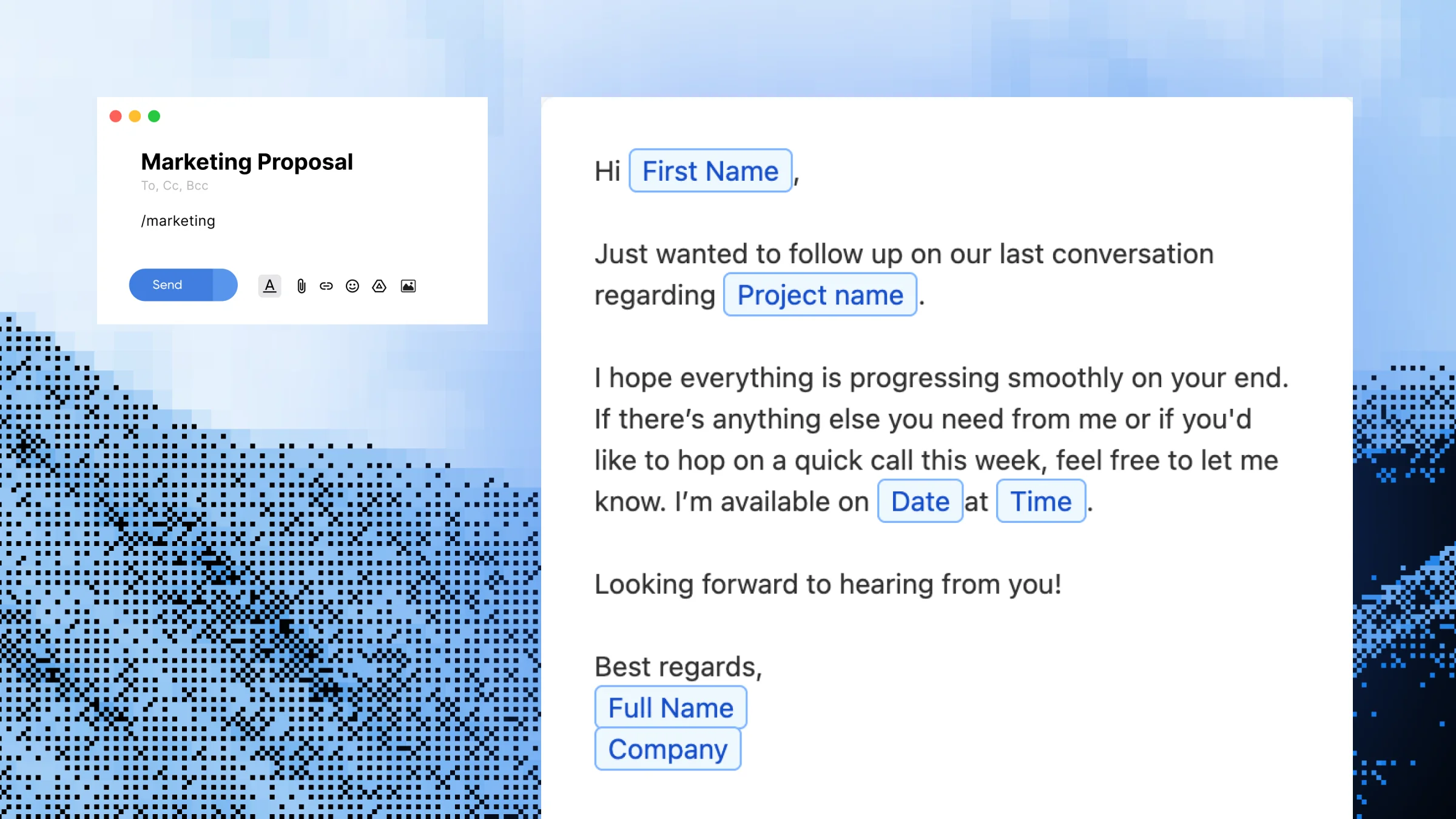
You Tab-Hop to ChatGPT Twenty Times a Day
Every time you want to polish an email, soften a Slack message, shorten a LinkedIn post or translate a reply, you do the same dance: copy the text, switch to ChatGPT, paste it, type the same prompt you’ve typed a hundred times, copy the result, switch back, paste it in. It adds friction to every piece of writing you do. Switching tabs to ChatGPT or Gemini for every small rewrite slows your day to a crawl. You retype the same prompts (“make this more professional,” “shorten this”) over and over. The copy-paste cycle breaks your flow inside Gmail, Slack, Notion or LinkedIn. Generic AI tools don’t remember the rewrite styles you actually use most. And you can’t standardize tone across your team because everyone’s using AI differently.
One hotkey. Your AI prompt. Any text, any app — rewritten in seconds.
What You Can Do With Magical
Build Custom AI Rewrite Hotkeys
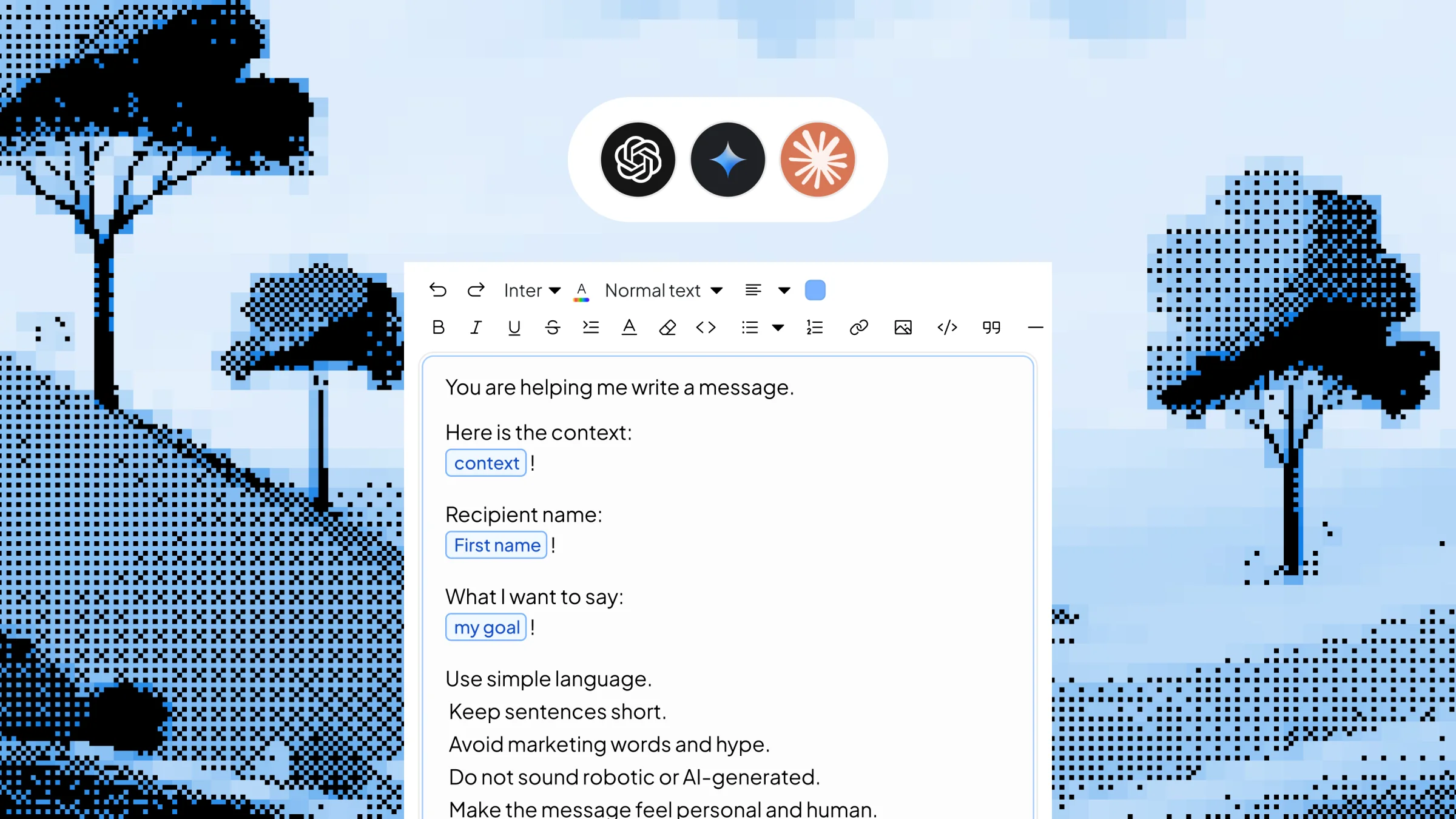
Create your own AI shortcuts for the rewrites you actually do — “make professional,” “soften tone,” “shorten by half,” “translate to Spanish,” “summarize.” Each one runs from a hotkey, with the exact prompt you wrote.
Pick Your AI Model Per Hotkey
Use ChatGPT for one Magical, Gemini for another. You aren’t locked into a single model, so you can match the AI to the job — a fluent translator for one hotkey, a sharper editor for another.
Rewrite Without Leaving Your App
Highlight text in Gmail, Slack, LinkedIn, Notion, Zendesk or any browser tab and press your hotkey. The rewrite happens in place — no copying, no switching to a chatbot tab, no losing your draft.
Translate on the Fly
A support agent handling Spanish-speaking customers can set up /es to translate any reply to Spanish in one keystroke. No more pasting text into Google Translate and copying it back.
Standardize AI Rewrites Across Your Team
Share Magical hotkeys with teammates so everyone’s “make professional” or “make friendly” uses the same approved prompt. Brand voice stays consistent even when 10 different people are writing.
How Magical Works
Step 1 — Open Slashit and click “Add Magical”
Start a new Magical from the Magical tab in the left sidebar.
Step 2 — Name it and write your AI prompt
Give it a clear name like “Make Professional,” “Shorten” or “Translate to Spanish.” Write the AI instructions exactly the way you’d phrase a prompt — Slashit sends this to the AI every time you trigger it.
Step 3 — Set a hotkey and pick your AI model
Choose any key combination (like Ctrl+Shift+P) and select the AI engine you want — ChatGPT, Gemini or your preferred model.
Step 4 — Save it
Your Magical is now active across every app on your computer — no integrations, no setup per app.
Step 5 — Highlight any text and press your hotkey
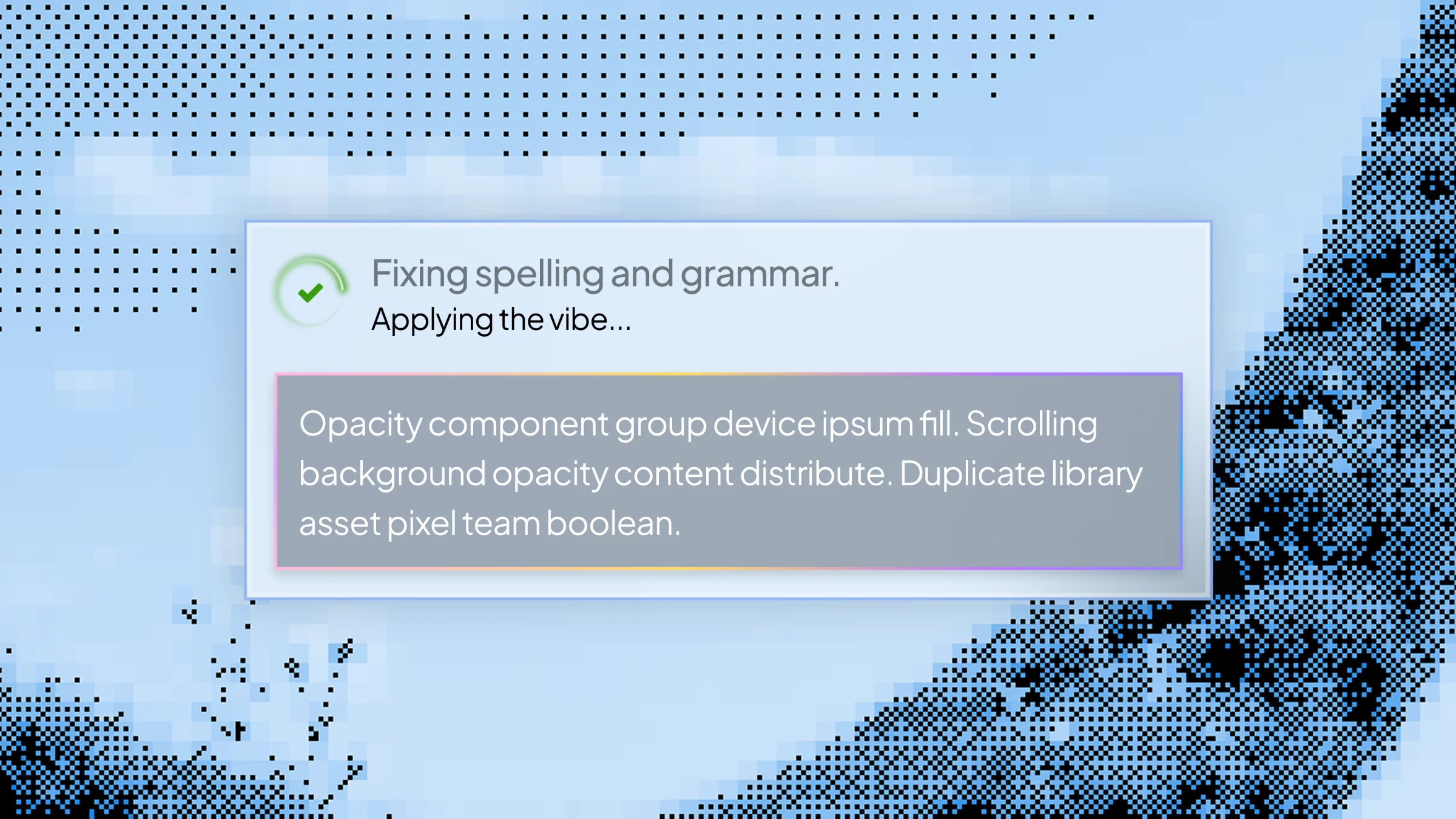
Slashit sends the selection to the AI with your saved prompt and replaces it with the rewritten version in place.
See Magical in Action
You’re typing a quick Slack message to a client. The draft reads:
"hey sorry i cant make the meeting tomorrow gonna have to push it"
You highlight the sentence and press:
Ctrl + Shift + P
Magical name: "Make Professional" · AI Model: ChatGPT
Saved prompt: "Rewrite this message in a polished, professional tone suitable for a client email. Keep it concise."
Slashit calls ChatGPT in the background. About two seconds later, the highlighted text is replaced in place with:
"Hi — apologies, but I won't be able to make tomorrow's meeting. Could we reschedule? I'll send a few alternative times shortly."
No tabs opened. No prompt retyped. No copy-paste cycle.
Who Uses Magical — and How
- Marketers — Build Magicals for “make punchier,” “social media-ready,” “shorten for LinkedIn” and “translate for our LATAM market.” Polish copy across email, Notion and social tools without ever leaving the page you’re writing on.
- Sales Reps — Set up hotkeys for “personalize this opener,” “shorten this follow-up” and “soften this objection response.” Send sharper outbound and faster replies without retyping the same ChatGPT prompts 30 times a day.
- Support Agents — Create Magicals for “translate to Spanish,” “soften this reply” and “rewrite for clarity.” Handle multilingual tickets and tone-sensitive escalations without juggling Google Translate and a chatbot tab.
- Founders & Managers — Use Magicals for “polish for LinkedIn,” “summarize this thread,” “rewrite for board update” and “shorten for Slack.” Write fast in your own voice, then upgrade the draft in one keystroke before it goes out.
- Freelancers — Build hotkeys for “professional client tone,” “polite scope pushback” and “tighten this proposal.” Send tighter, better-written client messages without slowing your workflow down.
Before Magical vs. After
| Without Slashit | With Slashit's Magical AI Rewriter |
|---|
| Copy → open ChatGPT tab → paste → type prompt → copy → paste back | Highlight text → press one hotkey → rewritten in place |
| Retyping "make this more professional" into ChatGPT every day | Save the prompt once as a Magical, never type it again |
| Switching tabs every time a support reply needs softening | Press /friendly inside Zendesk or Gmail directly |
| Pasting messages into Google Translate to reply in Spanish | Press /es and the reply translates in place |
| Inconsistent AI rewrites across the team | Shared Magical hotkeys keep prompts (and brand voice) identical |
| Drafting a LinkedIn post, then editing it manually for 10 minutes | Highlight, press /linkedin, post in under a minute |
What Users Say About Magical
I built four Magical hotkeys — improve, shorten, translate to Spanish and summarize. I genuinely haven’t opened ChatGPT in a browser tab in three months. The rewrite happens right inside Gmail or Slack.
— Sofia A. · Content Marketing Manager
English isn’t my first language, so I used to paste every important email into ChatGPT first. Now I press one hotkey and the email gets polished where I’m writing it. It feels like a private editor over my shoulder.
— Hiroshi N. · Product Manager
My team set up a shared ‘Make Professional’ Magical with the exact prompt our brand voice guide calls for. Five sales reps, same tone across every email — without anyone having to remember the rules.
— Megan R. · Head of Sales
Magical Works Everywhere You Write
Slashit runs at the operating system level on Mac and Windows, so your Magical AI hotkeys work in any browser tab or desktop app — without integrations, plugins or AI side panels to install.
Gmail
Outlook
Slack
Microsoft Teams
Notion
LinkedIn
Upwork
Zendesk
HubSpot
Intercom
Plus any other browser, CRM, helpdesk, doc editor or text field on your computer. Works with ChatGPT, Gemini and other supported AI models. Available on macOS and Windows.
Start Using Magical Free Today
Stop tab-hopping to ChatGPT every time you want to polish a sentence, shorten a post, change a tone or translate a reply. Build your own AI rewrite hotkeys in Slashit, write the prompts once, and run them against any text in any app — on Mac and Windows.
Try Magical Free · See How It Works
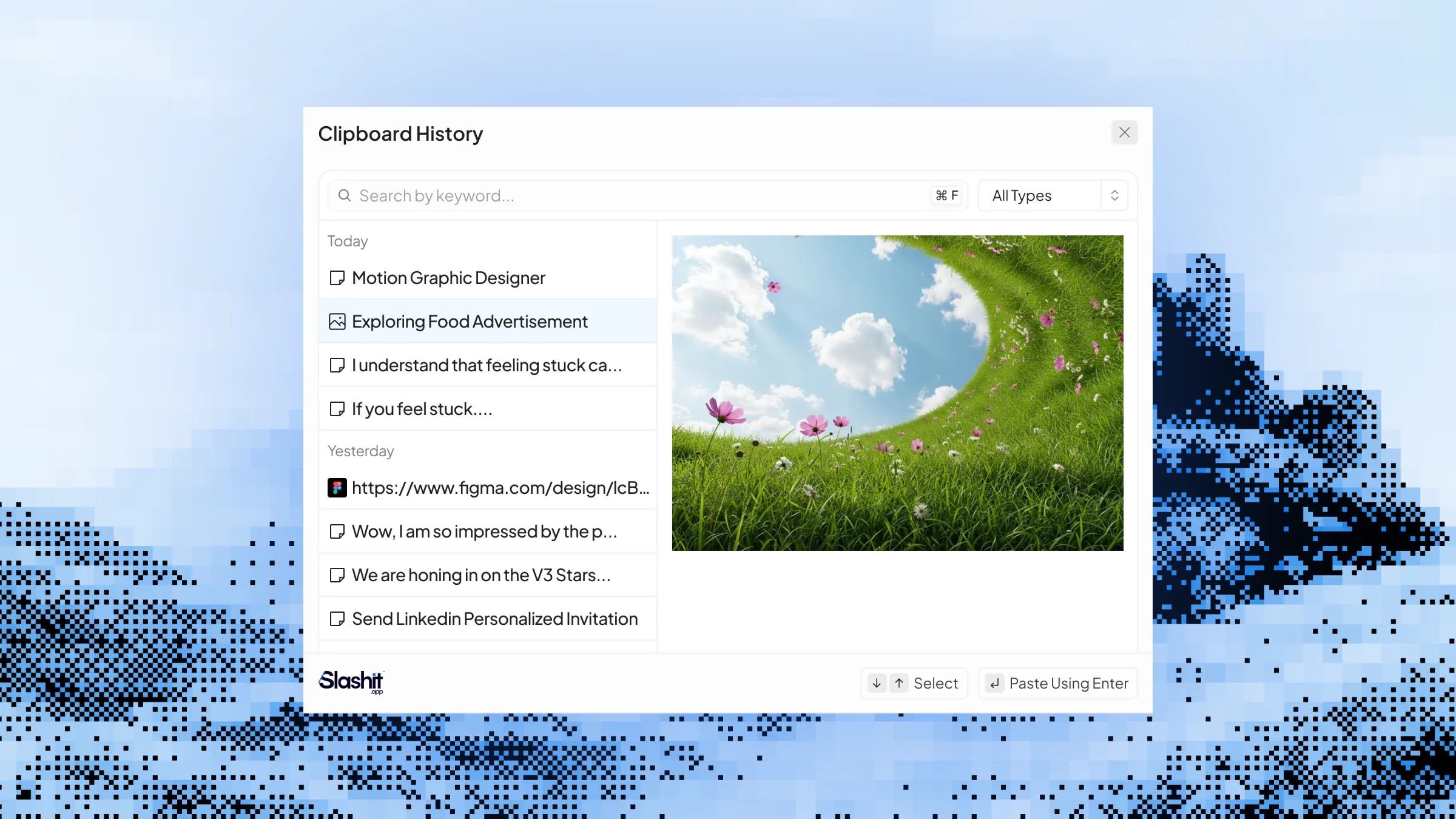 Clipboard History