Your Clipboard Only Remembers One Thing
The native clipboard on Mac and Windows holds exactly one item. Copy something new, and whatever you had before is gone forever. That’s fine until you need it back — which, if you’re honest, happens five times a day. The link you copied two minutes ago. The paragraph you needed for two different docs. The address you keep pasting all afternoon. The macOS and Windows clipboards only hold one item, so copying something new erases the previous copy. You copy a link, then copy something else, then realize you needed the first one. You re-copy the same URL three times a day because the clipboard keeps getting overwritten. That perfect paragraph you copied from a long article? Gone the second you copied a phone number. Lost code snippets, screenshots, addresses and quotes that you “had a second ago.”
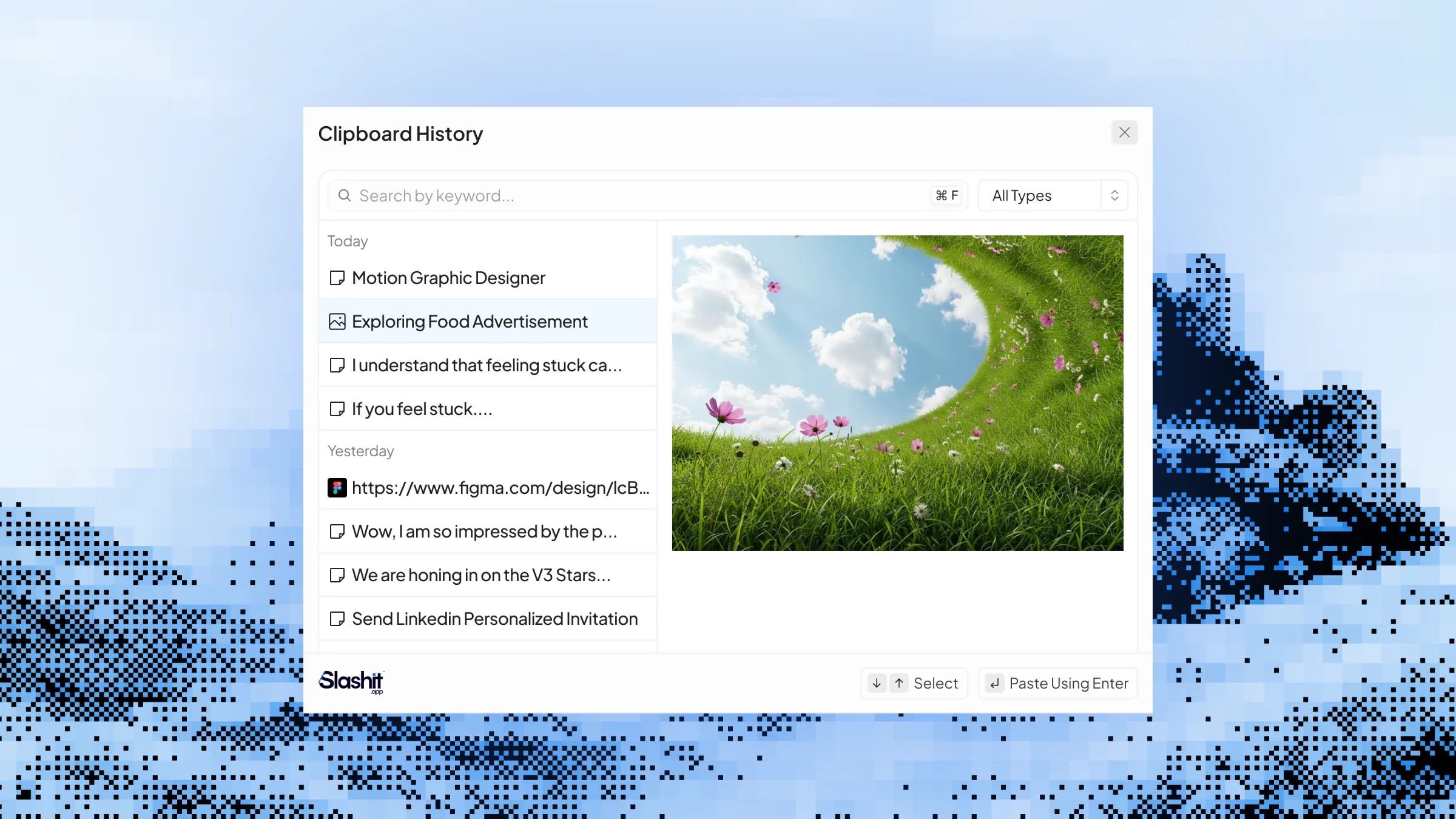
Every copy, saved automatically. Browse your history with one hotkey. Paste anything, anywhere.
What You Can Do With Clipboard History
Automatic Capture of Every Copy
Slashit watches your copy actions in the background and saves every text, link and image to your history. You don’t have to remember to save anything — if you copied it, it’s there.
Search Your Copy History
Your history is fully searchable. A developer who copies 50 URLs, error messages and code snippets a day can type a fragment to find the exact one they need instead of scrolling through dozens of items.
Works for Text, Links and Images
Snippets of writing, full URLs, email addresses, paragraph quotes from articles, screenshots — Slashit stores them all. A researcher pulling quotes from five sources can copy each one and paste them into a doc in order, without losing any.
Universal Paste — Any App, Any Time
Whatever you pull from Clipboard History pastes into the app your cursor is in. Gmail, Slack, Notion, LinkedIn, your CRM, a code editor, a Google Doc — it all just works, no integrations required.
Recover the One You Just Lost
Copied something important, then copied something else, then realized you needed the first one? Press your hotkey, click the older item, paste. The “one-item clipboard” problem doesn’t apply to you anymore.
How Clipboard History Works
Step 1 — Install Slashit and open it once
Clipboard History is on by default. There’s nothing to configure for the basic flow.
Step 2 — Copy text, links or images normally
Use Ctrl+C or Cmd+C as you always do. Slashit silently saves each copy to your history in the background.
Step 3 — Press your hotkey to open Clipboard History
The default is Cmd+1 on Mac or Ctrl+1 on Windows. Your full copy history opens in a clean list.
Step 4 — Pick the item you need and paste it
Browse or search the list, click the item you want, and Slashit pastes it where your cursor is.
Step 5 — Customize your hotkey (optional)
Click your profile icon → Settings → Shortcut tab → “Open Clipboard” → set the key combo you prefer → Update changes.
See Clipboard History in Action
You’re processing a customer support ticket. In quick succession, you copy three things: a Stripe refund link from your billing dashboard, the customer’s order confirmation number from a previous email, and a shipping tracking number from the carrier’s site. Now you’re back in Zendesk, drafting your reply. You go to paste the Stripe link — but your clipboard only has the tracking number, the last thing you copied. Without Slashit, that means switching tabs, finding the Stripe link, re-copying it.
With Slashit, you press:
Cmd
+
1
Your full clipboard history opens:
01
Tracking number
1Z999AA10123456784
03
Stripe refund link
https://dashboard.stripe.com/refund/re_3OoX...
You click the Stripe refund link. It pastes into your Zendesk reply. Then Cmd+1 again, pick the tracking number, paste. Then Cmd+1, pick the order number, paste.
Three pieces of context, three keystrokes — no tab-switching, no re-copying.
Who Uses Clipboard History — and How
- Developers — Copy URLs, error messages, code snippets and stack traces all day. Clipboard History keeps them all one keystroke away so you stop losing the link you copied two minutes ago to the function name you copied just now.
- Recruiters — Names, emails, LinkedIn URLs, candidate notes and ATS links pile up fast. Pull anything you’ve copied back into a sourcing email or candidate record without re-finding it on the page.
- Writers & Researchers — Pull quotes, links and references from multiple sources without losing any to the next copy. Build a research-heavy doc by pasting items in the order you actually need them.
- Sales Reps — Copy prospect info, calendar links, deal IDs and price quotes across your CRM, email and Slack. Press your hotkey to retrieve anything from earlier in your day.
- Designers & Marketers — Color codes, image URLs, brand asset links and copy variations all live in clipboard history. Recover the hex code or campaign URL you copied an hour ago without going back to find it.
Before Clipboard History vs. After
| Without Slashit | With Slashit's Clipboard History |
|---|
| The clipboard holds exactly one item — every new copy erases the last | Every copy is saved automatically and stays accessible |
| Switching tabs to re-copy a URL you already copied earlier | Press the hotkey, pick the URL from your history, paste |
| Lost paragraphs and quotes when you copy something else | All your text copies remain searchable in one list |
| Re-screenshotting an image because you copied something after it | Images stay in clipboard history alongside text and links |
| Manually saving "important" copies into Notes or a doc as backup | Slashit captures every copy without you doing anything |
| Hotkey doesn't match your muscle memory | Customize the shortcut in Settings → Shortcut tab |
What Users Say About Clipboard History
I copy 40–50 URLs, error messages and code snippets a day. Slashit’s clipboard history is the difference between flow and constant re-copying. I can pull up any link from earlier in my day in one keystroke.
— Daniel V. · Senior Backend Engineer
As a writer, I pull quotes from five or six sources for every article. Before Slashit, I’d lose one of them every time I copied something new. Now they’re all just sitting in my clipboard history when I need them.
— Aisha M. · Freelance Journalist
I’m a recruiter — names, links and LinkedIn URLs all day. Clipboard History keeps everything I’ve copied in front of me. I haven’t lost a candidate link to an accidental re-copy in months.
— Marcus J. · Technical Recruiter
Clipboard History Works Everywhere You Paste
Slashit runs at the operating system level on Mac and Windows, so your clipboard history pastes into any browser tab or desktop app — without integrations, plugins or per-tool setup.
Gmail
Outlook
Slack
Microsoft Teams
Notion
LinkedIn
Upwork
Zendesk
HubSpot
Intercom
Plus any other browser, CRM, helpdesk, code editor, design tool or text field on your computer. Available on macOS and Windows.
Start Using Clipboard History Free Today
Stop losing the link you copied two minutes ago. Stop re-copying the same URL three times a day. Stop watching paragraphs disappear when you copy a phone number. Slashit captures every text, link and image you copy and keeps them one hotkey away — across every app on Mac and Windows.
Try Clipboard History Free · See How It Works
 Dynamic Templates