How to Save 5 Hours a Week on Repetitive Communication


Founder & CEO, Slashit App
If you added up every email, Slack message, and status update you typed from scratch this week, most of it would be something you’ve already written before. Same client questions. Same project updates. Same “just checking in” replies. That repetition is where your hours are disappearing, and it’s also the easiest place to get them back.
Saving 5 hours a week on repetitive communication isn’t about working faster. It’s about not rewriting the same message twice. Once you know where the repetition lives, you can template it, automate it, or batch it, and the time savings stack up fast.
Here’s exactly how to find those hours and claim them back.
Track Where Your Communication Hours Actually Go
You can’t fix a time leak you haven’t measured, so start by tracking every repeated message for one week before changing anything.
Most people guess wrong about where their time goes. You might think meetings are the problem when it’s actually the eight variations of the same onboarding email you send every
Monday. A quick audit fixes that guesswork.For five working days, keep a simple log. Every time you type a message, jot down:

- What you wrote (a few words is enough)
- Where you sent it (email, Slack, WhatsApp, a support ticket)
- How long it took
- Whether you’ve written something close to it before
By Friday, patterns show up on their own. You’ll likely find that a small handful of message types, client status updates, meeting confirmations, pricing questions, account replies, account for most of your typing time. That’s your target list for the next five sections.
A few roles tend to see the same repeat offenders show up again and again:
- Freelancers retype project updates, scope reminders, and invoice follow ups.
- Sales reps rewrite the same discovery call recaps and pricing breakdowns.
- Support teams answer password resets, refund policies, and shipping questions on a loop.
- Managers send near identical status recaps to different stakeholders every week.
If you recognize your own week in that list, you’re not an outlier. This is just what repetitive communication looks like across most jobs that involve a lot of writing and replying.
This step feels slow, but it’s the difference between guessing at fixes and actually solving the right problem. Once you know your top repeat offenders, templating them is the fastest win available.
Turn Your Most-Repeated Messages Into Templates
The fastest way to save time on repetitive communication is to stop typing anything you’ve already written more than twice, and turn it into a template instead.
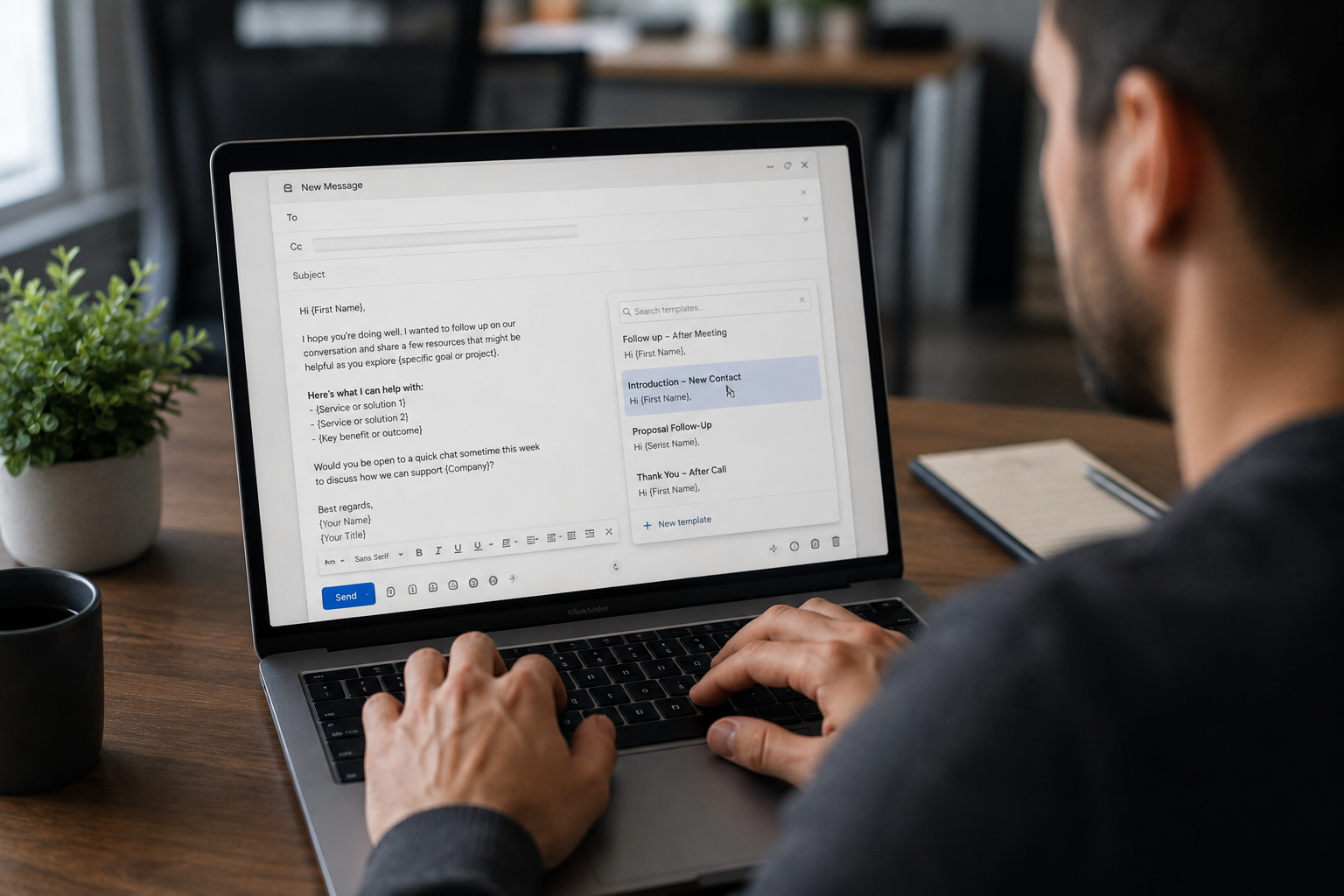
If a message shows up on your audit list three or more times, it belongs in a template. This is the single highest leverage fix on this list because it takes minutes to set up and pays back every single time you’d otherwise retype something.
You have a few routes to get there:
- Built-in email templates. Gmail has this under Settings > Advanced, where you can enable Templates and save canned responses right inside compose. Outlook offers the same idea through Quick Parts or My Templates.
- Dedicated text expanders. Instead of living inside one app, a text expander works anywhere you type. You set a short code, and typing it expands into a full paragraph, a formatted reply, or even a template with blanks you fill in on the fly. This matters because your repetitive messages rarely stay inside one app. You’re replying to the same client question in Gmail one day and in Slack the next.
- Dynamic snippets for personalization. A plain copy paste template still needs manual editing for names, dates, and details, which eats back some of the time you just saved. Tools like Slashit solve this with dynamic templates: you type a short code and it drops in a full message with editable fields already in place, so you’re filling in the blanks instead of rebuilding the whole message. It works the same way across Slack, Gmail, Notion, and WhatsApp without needing separate setup in each one.
A good rule of thumb: if you’d have to explain the message’s structure to a new hire, it’s template worthy. If it changes completely every time, it isn’t.
Setting these up takes an afternoon at most. Go through your audit list from the previous step, write out the two or three most common versions of each message, and save them as templates in whichever tool you’re already using. The time investment is small and one time, while the payoff repeats every single day after.
Templates handle the writing itself, but they don’t stop people from pinging you for updates you could have shared once. That’s the next leak to close.
Replace Status Pings With Async Updates
You save the most time on status communication by answering once in a shared place instead of answering the same question every time someone asks.

Constant back and forth messaging is expensive in a way that doesn’t show up on a time log directly. It’s not just the reply itself, it’s the context switch every time a message pulls you out of focused work. Shifting from live pings to a structured, asynchronous rhythm cuts both the reply time and the interruption cost.
A few ways to make that shift:
- Central documentation. Keep a shared doc or Notion page with current project status, FAQs, or standard procedures. When someone asks “where are we on this,” you point them to the page instead of writing a fresh summary.
- Delay send for boundaries. If you’re answering messages late at night, write the reply then but schedule it to land the next morning. This keeps you from training people to expect instant replies at 11pm, which only generates more late-night pings.
- NNTR on routine updates. Adding “No Need To Reply” to the end of a purely informational message tells the other person they don’t owe you a “thanks” or “got it.” That one habit alone can cut a surprising number of low value replies out of your inbox.
None of this requires new software. It requires deciding, once, where information lives and training the people around you to look there first.
It also takes a bit of consistency. The first time you point someone to the shared doc instead of typing a fresh update, they might still follow up with a question. By the third or fourth time, most people stop asking and start checking the doc first. That shift is where the real time savings show up, not on day one but a few weeks in.
Async habits handle the internal back and forth. External questions from customers and leads need a different fix, since you can’t exactly point a stranger to your internal Notion page.
Automate FAQs and Routine Questions
If you’re answering the same customer or lead question more than a few times a week, it’s time to let software answer it instead of you.
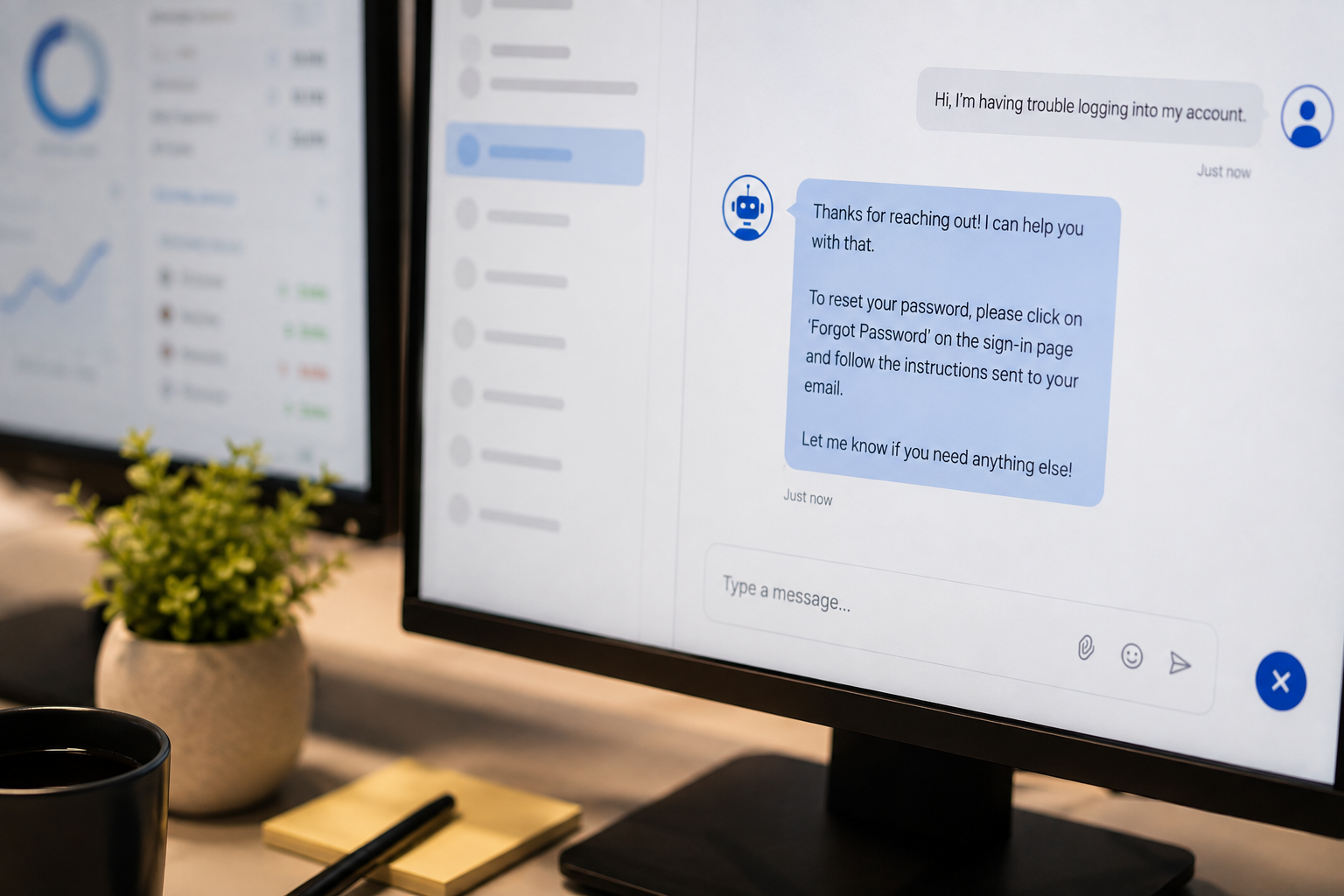
Support and intake questions are some of the most repetitive communication most people handle, and they’re also the easiest to hand off completely, because the answer rarely changes from one person to the next.
Here’s where automation earns its keep:
- Chatbots for common questions. Tools like ManyChat, or the chat widget built into most website platforms, can answer frequently asked questions or route leads to the right resource without you touching a keyboard. This works especially well for pricing questions, hours, and “how do I get started” type messages.
- Auto-responders that set expectations. A simple automatic reply like “I process emails between 9am and 4pm and you can expect a response within 24 hours” does more work than it looks like. It stops people from following up twice while they wait, which means fewer repeat messages landing in your inbox.
- Canned replies for support tickets. If you’re on a support team, a small library of ready made answers for password resets, refund policies, and shipping questions turns a five minute reply into a ten-second one.
The goal isn’t to remove yourself from customer conversations entirely. It’s to let automation catch the predictable ones so your actual attention goes to the questions that need it.
A useful test here is frequency, not importance. A question can matter a lot to the person asking it and still be one you’ve answered fifty times before. Those are exactly the ones worth automating, since the answer doesn’t lose quality by being instant instead of personally typed.
Once the predictable questions are off your plate, the messages that are left still need to get written, and that’s where AI can take the first pass off your hands.
Let AI Draft Your First Pass
The quickest way to cut writing time on messages that aren’t quite template-worthy is to have AI produce a first draft you edit instead of a blank page you start from scratch.
Not every message fits a fixed template. Client delays, tricky feedback, and one off explanations all need custom wording, but “custom” doesn’t mean you have to write every word yourself. Generative AI can produce a solid first draft in seconds, and editing a draft is almost always faster than writing one from a blank page.
A few ways this plays out day to day:
- Drafting from a short prompt. Something like “draft a friendly email to a client explaining a one day delay on the project, keep it under 100 words” gets you 90% of the way to a sendable reply.
- Summarizing long threads. Instead of rereading a 30 message email chain before replying, ask AI to summarize it and list the next three action items.
- Rewriting tone on the fly. If you’ve already written a rough reply but it reads too blunt or too casual for the recipient, an AI sentence rewriter can adjust the tone without you retyping the whole thing. This is one of the reasons a rewrite feature built into your typing tool is worth having, since you can polish a message right where you’re typing it instead of copying it into a separate chat window and back.
The habit that makes this actually save time is treating AI output as a draft, not a final answer. A ten second edit pass still beats five minutes of writing from nothing.
Worth noting: this works best for messages that need custom wording but low emotional stakes, like a delay notice or a thread summary. For anything sensitive, a tough client conversation or a piece of critical feedback, write it yourself and use AI only to check tone, not to generate the substance. The time savings should come from skipping the blank page, not from skipping the thinking.
At this point you’ve templated the repeatable stuff, automated the predictable stuff, and sped up the custom stuff. The last piece is making sure you’re not still checking messages all day long.
Batch Your Communication Into Fixed Blocks

You save the most time overall by answering messages in two or three set blocks a day instead of checking and replying continuously.
Every time you bounce from deep work to your inbox and back, you pay a switching cost that’s bigger than the minute or two the reply itself took. That cost is invisible on a time log, but it’s a big part of why a day full of “quick replies” can leave you with no focused hours at all.
Batching fixes this without requiring any new tool:
- Schedule two to three blocks of 30 to 45 minutes a day dedicated to email, Slack, and messages.
- Turn off notifications outside those blocks so you’re not pulled out of focused work by every incoming ping.
- Use your auto responder or status message to signal when you’ll be checking messages next, so people aren’t left guessing.
This is also where all your earlier fixes compound. Inside a single 30 minute block, you’re not writing from scratch anymore. You’re firing off templates, letting AI draft anything custom, and pointing people to your shared docs for status questions. What used to take an hour of scattered replies now takes fifteen minutes of focused batching.
If you manage a team, this habit is worth setting as a shared norm rather than a personal one. A team that all checks messages continuously will keep interrupting each other even if you personally batch your own replies. Agreeing on rough response windows as a group protects everyone’s focused time, not just yours.
That’s five separate fixes working together, so it helps to see exactly how they add up to real hours back on your calendar.
Add It Up: Where Your 5 Hours Actually Come From
The 5 hours a week you’re aiming for doesn’t come from one big fix, it comes from five smaller ones stacking together across a normal work week.
Here’s a realistic breakdown based on a typical week of client and team communication:
| Tactic | Typical weekly time saved |
|---|---|
| Templates for repeated messages | 1.5 hours |
| Async updates and shared docs | 1 hour |
| Automated FAQs and auto-responders | 45 minutes |
| AI-drafted first passes | 45 minutes |
| Batched communication blocks | 1 hour |
| Total | ~5 hours |
Your own numbers will shift depending on how much of your day is client facing versus internal, but the pattern holds. No single tactic gets you to 5 hours on its own. It’s the combination of removing repetition, removing unnecessary back-and forth, and removing scattered checking that adds up.
Two things push that number higher over time. First, templates and automations get better the longer you use them, since you keep refining the wording based on how people actually respond. Second, the habits reinforce each other. Once people stop expecting instant replies, your batching blocks get easier to protect, and once your inbox is smaller thanks to automation, batching itself takes less time.
A few questions tend to come up once people start putting this into practice, so let’s cover those before you get started.
FAQ
How long does it take to see the time savings?
Most people notice a difference within the first week, since templates and auto responders start saving time the moment they’re set up. The async habits and batching take a bit longer to stick, usually two to three weeks, because they depend on training the people around you as much as changing your own routine.
Do I need new software to do this?
No. Built in email templates, delay send, and time blocking cost nothing and work with tools you already have. Dedicated text expanders and AI drafting tools speed things up further, but they’re additions, not requirements.
What if my messages are too different to template?
Look for the structure underneath the wording rather than the exact sentences. A client delay email, a project update, and a meeting recap all follow a repeatable shape even if the specific details change every time. A template with editable fields handles that shape while still letting you customize the details.
Will clients notice I’m using templates?
Not if the template is good. A well written template personalized with the right name and details reads exactly like a message you wrote from scratch, just faster. What clients actually notice is response time, and templates make yours quicker, not more generic.
Is this worth it if I only handle a small amount of communication?
Yes, just scale your expectations. Someone answering 10 messages a day will save less time than someone answering 100, but the ratio holds. Even a smaller inbox has repeated questions worth templating.
Start With One Fix
You don’t need to overhaul your entire communication workflow this week. Pick the single biggest repeat offender from your audit, whether that’s a client update, a support question, or a scheduling email, and fix that one thing first. The rest of the list will still be there once you feel the first hour come back.
If templating and quick AI edits sound like the piece you’re missing, Slashit handles both from one place, working directly inside Gmail, Slack, Notion, WhatsApp, and anywhere else you type, with no separate integration needed. You can try it free at slashit.app/download.
// more articles
 Productivity
 10 Best Grammarly Alternatives in 2026: Free and Paid
Comparing the best Grammarly alternatives for 2026 by price, AI customization, and use case, so you can find the right fit fast and skip the guesswork.
 Productivity
 Text Expander for Founders: Save Hours Every Week
A text expander for founders turns investor updates, cold outreach, and hiring replies into one hotkey. Compare tools, get templates, and set up in minutes.
 Productivity
 Text Expander for Managers: Stop Retyping the Same Messages
A text expander for managers turns repeated messages into instant shortcuts. See how tools like Slashit save managers hours every week.

// blog updates