Does ClickUp Have a Text Expander? What to Know


Founder & CEO, Slashit App
ClickUp does not have a native, system-wide text expander. Instead, it offers built-in alternatives like Task Templates, Doc Templates, and Slash Commands. Those tools work well inside ClickUp, but they stop working the moment you leave it.
That gap matters if you type the same replies in Gmail, Slack, or your CRM too. This guide breaks down ClickUp’s built-in options and where they fall short. Then it covers the best ClickUp text expander alternatives that follow you everywhere you type.
What Is a Text Expander, Exactly?
A text expander is a tool that turns a short code into full text instantly. Type a trigger like /sig or /thanks, and the tool fills in your saved sentence, paragraph, or template. It works system-wide, in any app, any browser tab, any text box on your screen.
That’s different from a snippet library tucked inside one app. Real text expansion follows you into Gmail, Slack, Notion, and your CRM. ClickUp’s tools, as you’ll see next, don’t do that.
Say you write the same onboarding email every week. With a real text expander, you type one short code and the full email appears, ready to send.
With ClickUp’s own tools, the process looks different. You’d have to leave your inbox, open ClickUp, copy the text, then paste it back. That extra round trip is the whole difference between the two.
ClickUp’s Built-In Alternatives to a Text Expander
ClickUp gives you three built-in tools instead of a true text expander:
- Templates for repeatable task and doc structures
- Slash Commands for fast formatting and inserts
- Notepad for quick notes on the go
Each one covers a different need, but none of them expand text system-wide. Here’s how each one actually works, and where it comes up short.
Task and Doc Templates
Task Templates and Doc Templates let you save a structure once and reuse it inside ClickUp. Save a task’s fields, description, and checklist as a template. Reuse it for every new client onboarding or sprint.
Doc Templates work the same way for wikis, meeting notes, and SOPs.
That said, templates are built for structure, not for shortcuts. You still open a template picker and select the right one. There’s no typing a quick code and watching text appear on the spot.
Templates also live entirely inside ClickUp’s own database. Copy a client’s project template into a new Space, and it stays a ClickUp object. It never becomes a piece of reusable text.
That’s fine for project structure. But it’s a different job than typing a reply and watching it fill itself in.
ClickUp Slash Commands (Typing ”/” in ClickUp)
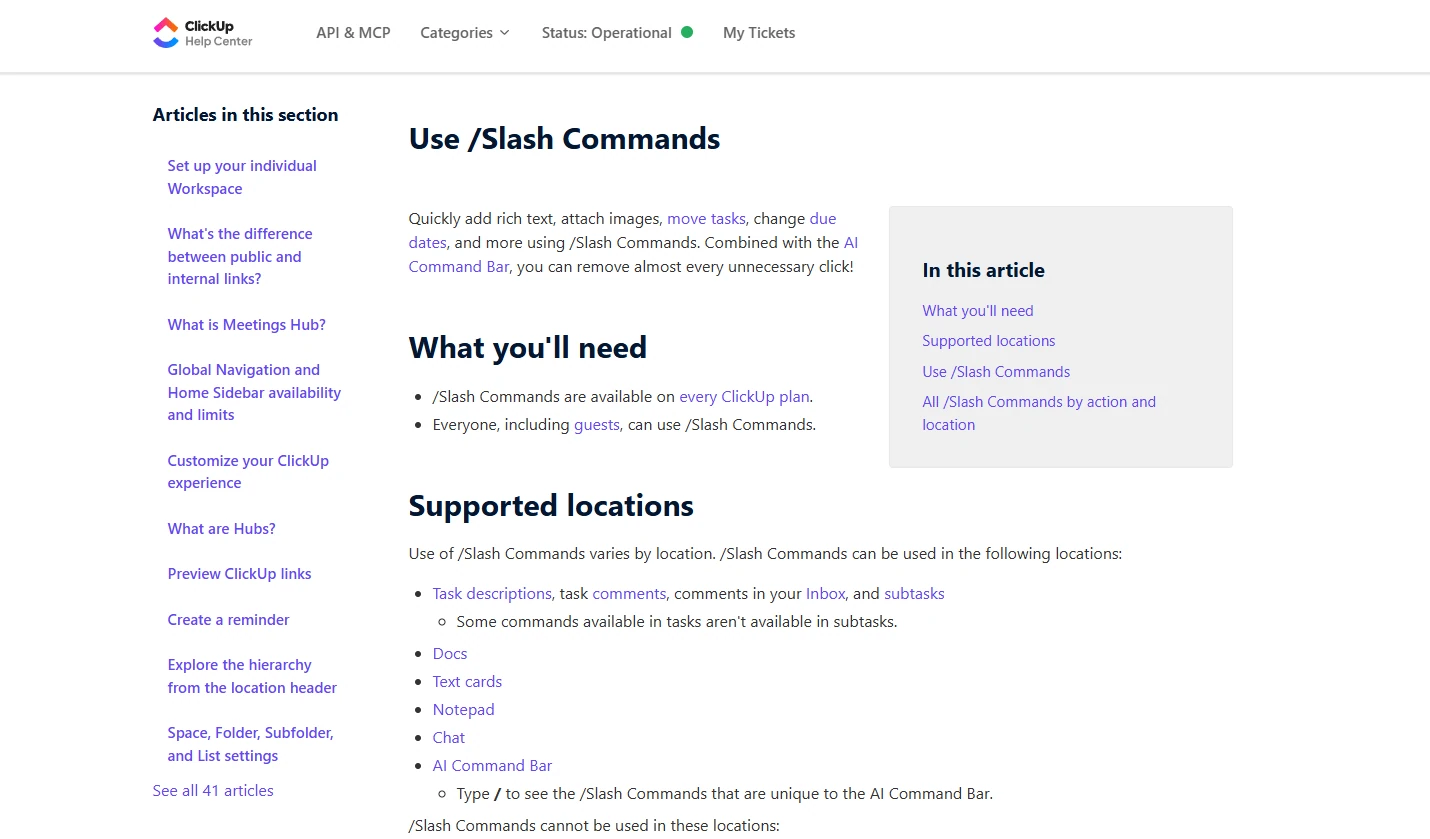
ClickUp Slash Commands work when you type ”/” inside a task, doc, or comment box. A menu pops up, and you pick a heading, a table, a checklist, or a divider. It’s quick, but it inserts formatting blocks, not saved text you wrote yourself.
You can read ClickUp’s own breakdown of the feature in its text formatting guide. A real text expander built around ClickUp users could use that same ”/” habit too. The difference is it would pull up your saved messages, not formatting menus.
That habit is worth noticing. Your fingers already learn to type ”/” for anything reusable. A cross-app text expander using the same trigger feels like second nature, not a new skill.
ClickUp Notepad
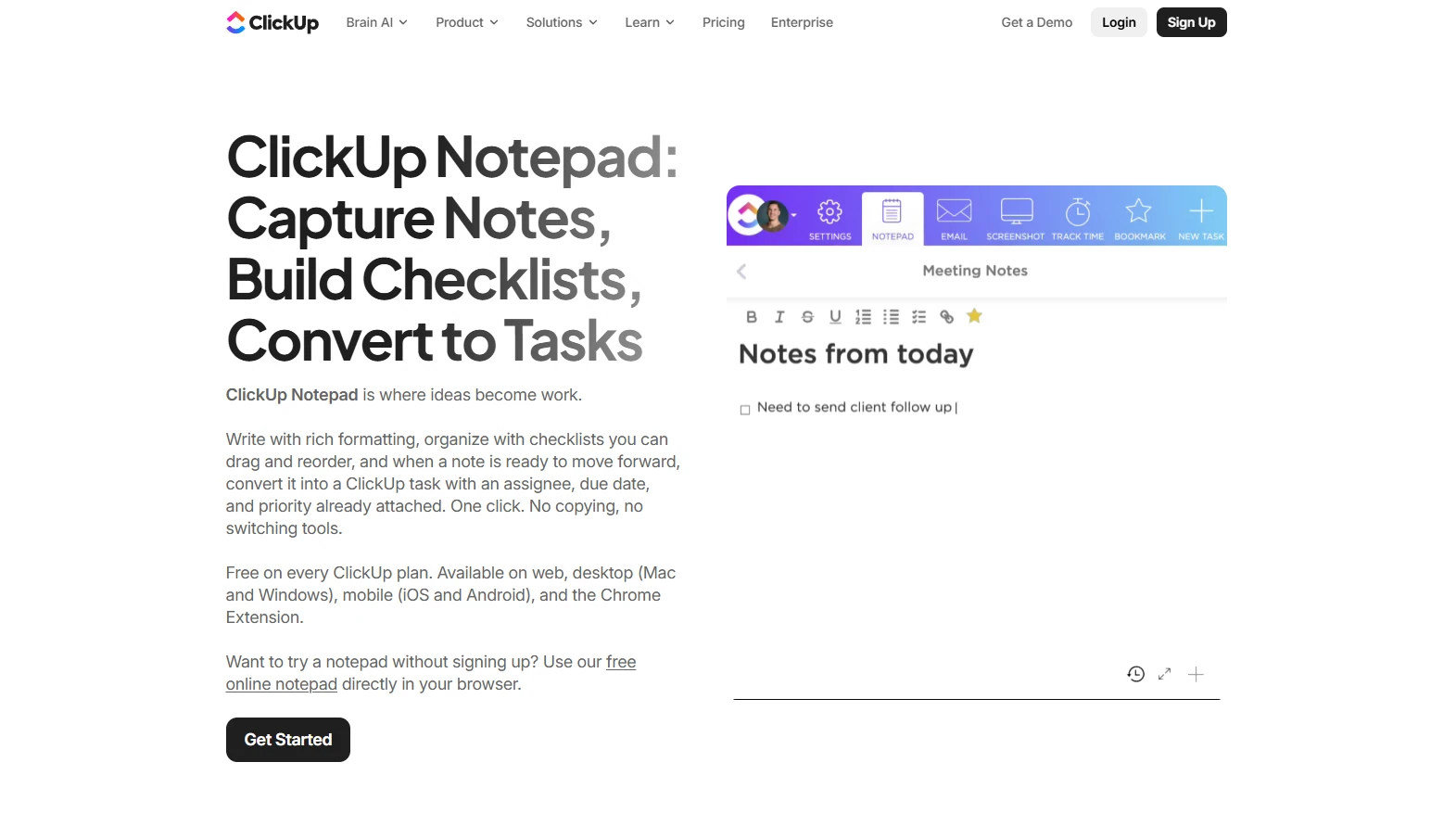
ClickUp Notepad is a lightweight space for jotting quick notes while you browse. It lives inside the ClickUp Chrome extension. You can capture an idea, a link, or a thought without opening a task.
But Notepad doesn’t turn a shortcut into text either. It’s built for capturing new notes, not reusing old ones.
None of these three tools give you the one thing a true text expander does. That leaves a real gap the moment you leave ClickUp.
Where ClickUp’s Native Tools Fall Short
ClickUp’s native tools only work inside ClickUp itself. That’s the core limitation, and it shapes everything else on this list. ClickUp isn’t broken here, it’s just not built for this job.
Here’s what you lose the moment you step outside ClickUp:
- Nothing carries over to Gmail, Slack, WhatsApp, Notion, or your CRM
- No abbreviation-style shortcut for a plain sentence, just formatting blocks and full templates
- Templates take more setup than typing a quick code
- No AI rewriting built into the workflow
- No clipboard history for links, IDs, or text you copy from a task
A task often turns into an email or a Slack reply by the end of the day. ClickUp goes quiet right there. That’s exactly the moment a real text expander earns its place.
Each of those gaps compounds over a week. A support agent might retype the same refund explanation a dozen times across ClickUp and email. A project manager might rebuild the same status update by hand in three different apps.
None of that is ClickUp’s fault. It’s simply outside what a project management tool was ever meant to do.
Do You Actually Need a Dedicated Text Expander With ClickUp?
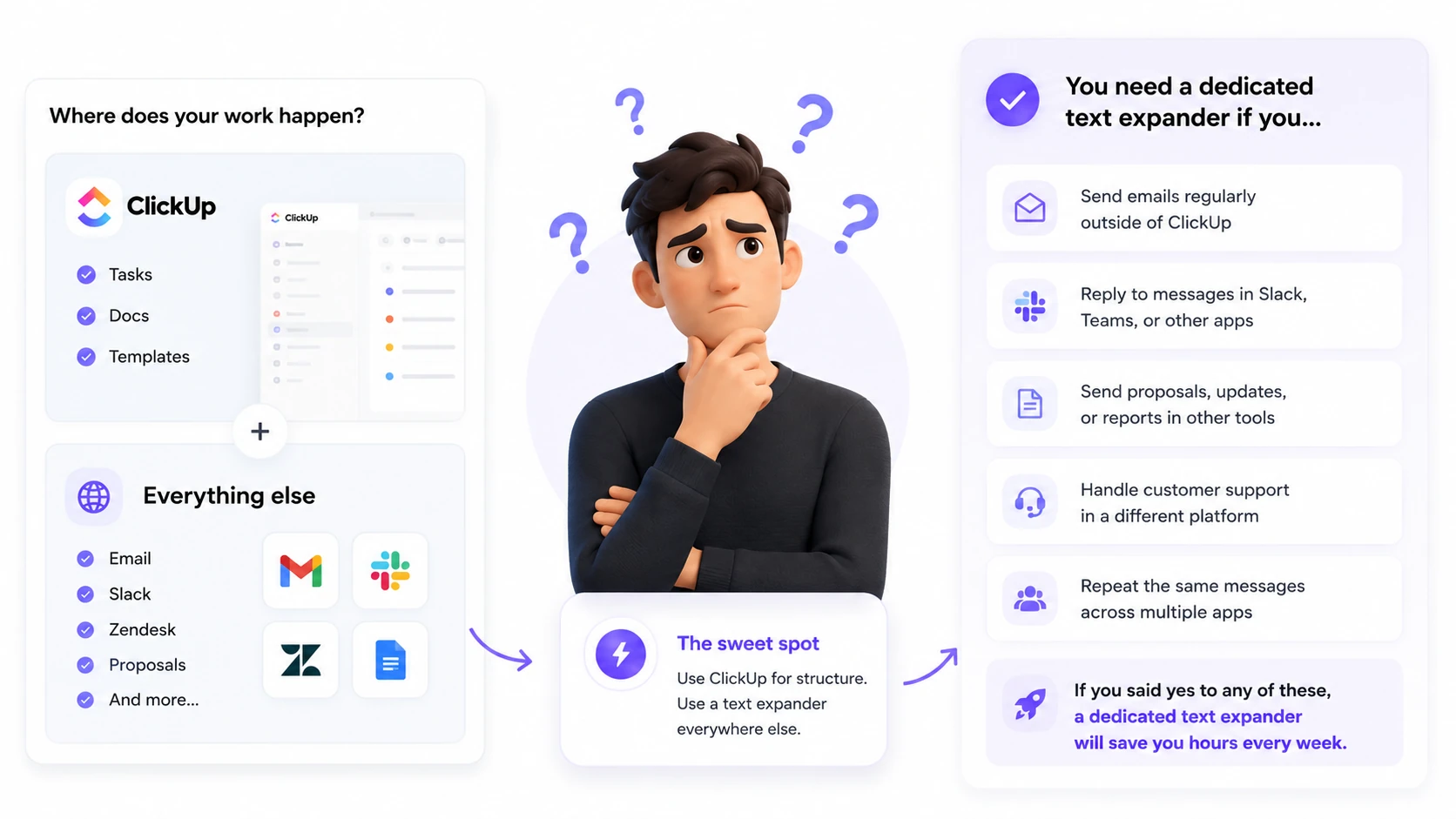
You need a dedicated text expander if you type outside ClickUp as much as inside it. If your entire workday happens inside ClickUp tasks and docs, native templates might genuinely cover you. But most people don’t work that way.
Take a support lead who logs every ticket in ClickUp. That same person replies to the customer in Zendesk or email.
Or take a freelancer who tracks projects in ClickUp but sends proposals and onboarding emails somewhere else. The task management lives in one app, but the typing happens everywhere.
That split is exactly why layering a cross-app tool on top of ClickUp makes sense for most teams. You keep ClickUp for structure and add a text expander for everything else.
Managers run into a similar pattern from a different angle. They delegate tasks in ClickUp, then follow up with the same reminder across Slack and email all week. A dedicated text expander turns that repeated typing into a two-second shortcut, in any app.
Here’s a quick way to check where you land. If you can answer yes to any of these, you’re a good fit for a dedicated tool:
- You reply to the same type of message more than five times a week
- You switch between three or more apps during a normal workday
- You’ve ever copied and pasted the same paragraph from an old ClickUp comment
Best Text Expander Tools That Work Alongside ClickUp
The best text expander tools for ClickUp users are TextExpander, Espanso, Typedesk, and Slashit. Each one takes a different approach to the same problem: making your saved text follow you outside ClickUp. Here’s how each one actually stacks up.
Slashit (Text Expander + AI Rewriter + Clipboard History)
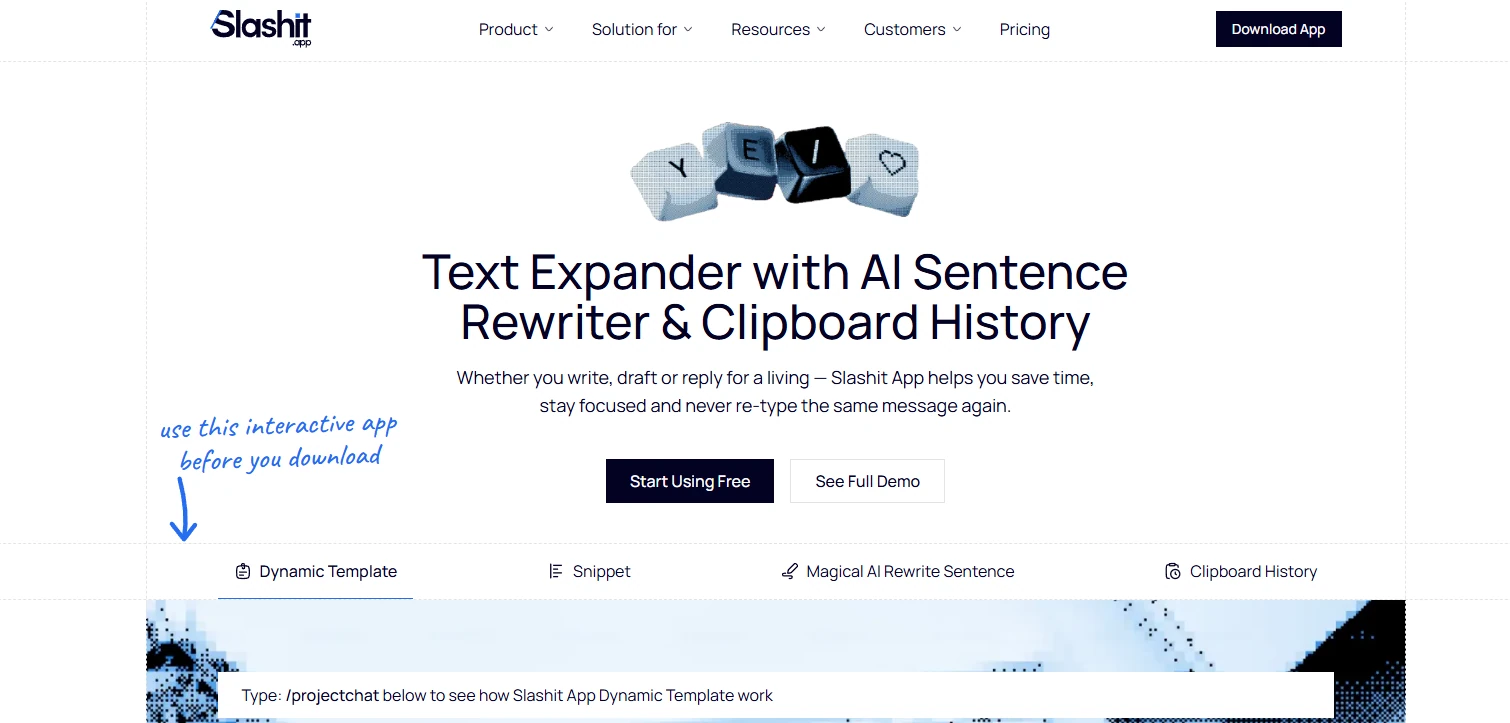
Slashit combines text expansion, AI rewriting, and clipboard history in one app for Mac and Windows. It runs at the operating system level, so it works in any app you type in, ClickUp included.
ClickUp users already think in slash commands, so Slashit’s trigger system feels familiar right away. Type a short code, and your saved snippet appears instantly. It works the same whether you’re in a ClickUp comment, a Gmail draft, or a Slack message.
For longer, personalized messages, Slashit’s dynamic templates fill in names, dates, and custom fields automatically.
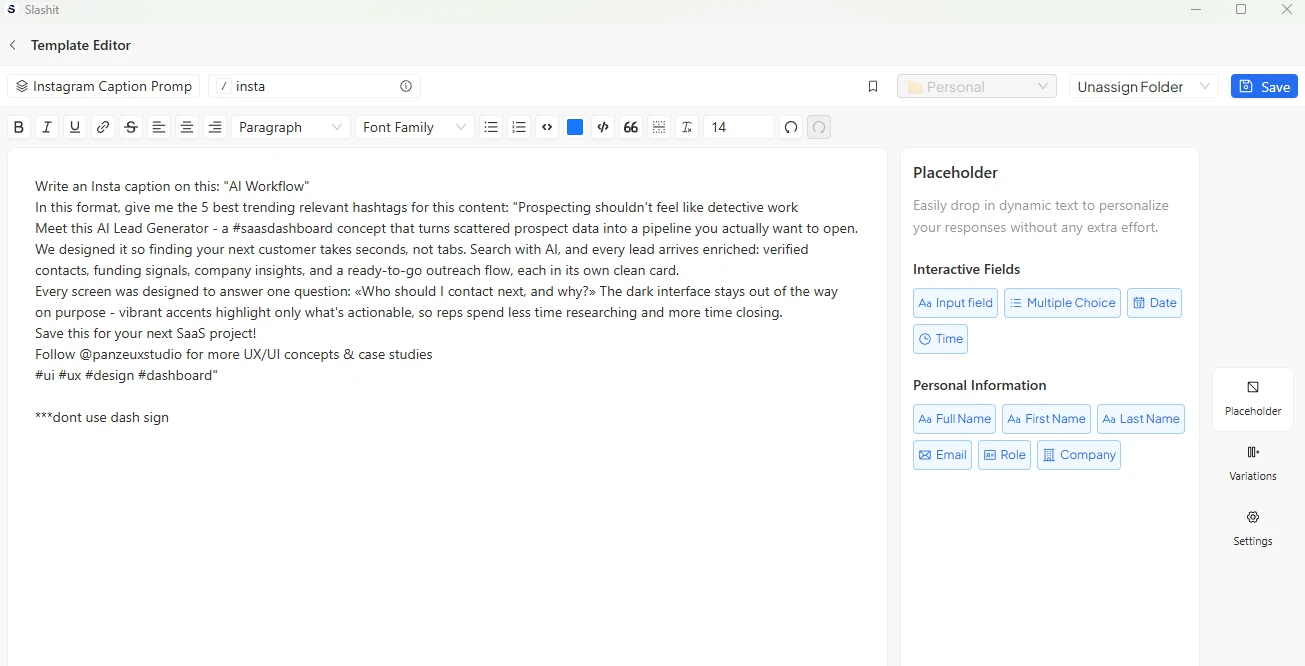
Need to change the tone of a draft? Highlight the text and press a hotkey. The AI rewriter rewrites it in place, using your own saved prompt.
On top of that, Slashit’s clipboard history saves every link, screenshot, and paragraph you copy. That means you never lose a task ID or client URL again. It comes with a permanent free plan, and premium starts at $5 a month or $54 a year.
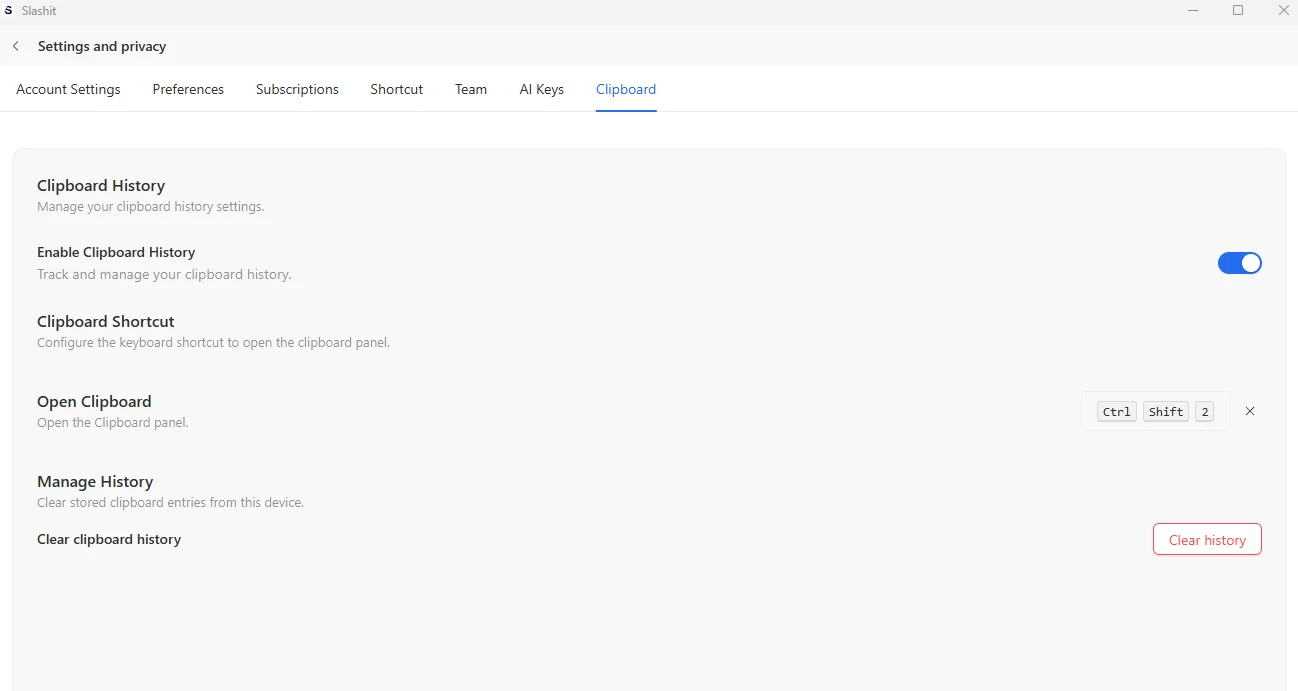
Over five years, that works out to about $270 total on the annual plan. TextExpander’s Individual plan costs $199.80 over the same stretch. But for that lower price, you lose AI rewriting and clipboard history completely.
The extra $70 buys two entire tools you’d otherwise pay for separately.
TextExpander
TextExpander is the original text expander, built back in 2006. It’s strong on cross-device sync, HIPAA compliance, and native mobile apps for iOS and Android. That combination makes it a solid fit for healthcare teams and large enterprises.
That strength comes at a cost, though. TextExpander has no free plan, and Individual pricing runs $39.96 a year. Business plans run closer to $99.96 per user, per year.
It also skips AI rewriting and clipboard history entirely. The focus stays purely on abbreviation-based snippet expansion.
For a five-person team, that Business pricing adds up to roughly $499.80 a year, every year. There’s no lifetime option either, since the company moved to subscription pricing back in 2016. If your team only needs plain snippets, that cost might still be worth it.
Espanso and Typedesk
Espanso and Typedesk both offer solid text expansion, built for different kinds of users. Espanso is free, open-source, and runs on Windows, Mac, and Linux. It’s aimed at people comfortable editing configuration files instead of clicking through menus.
Typedesk takes the opposite approach, with browser extensions and team sharing built in from day one. Both tools handle plain text expansion well.
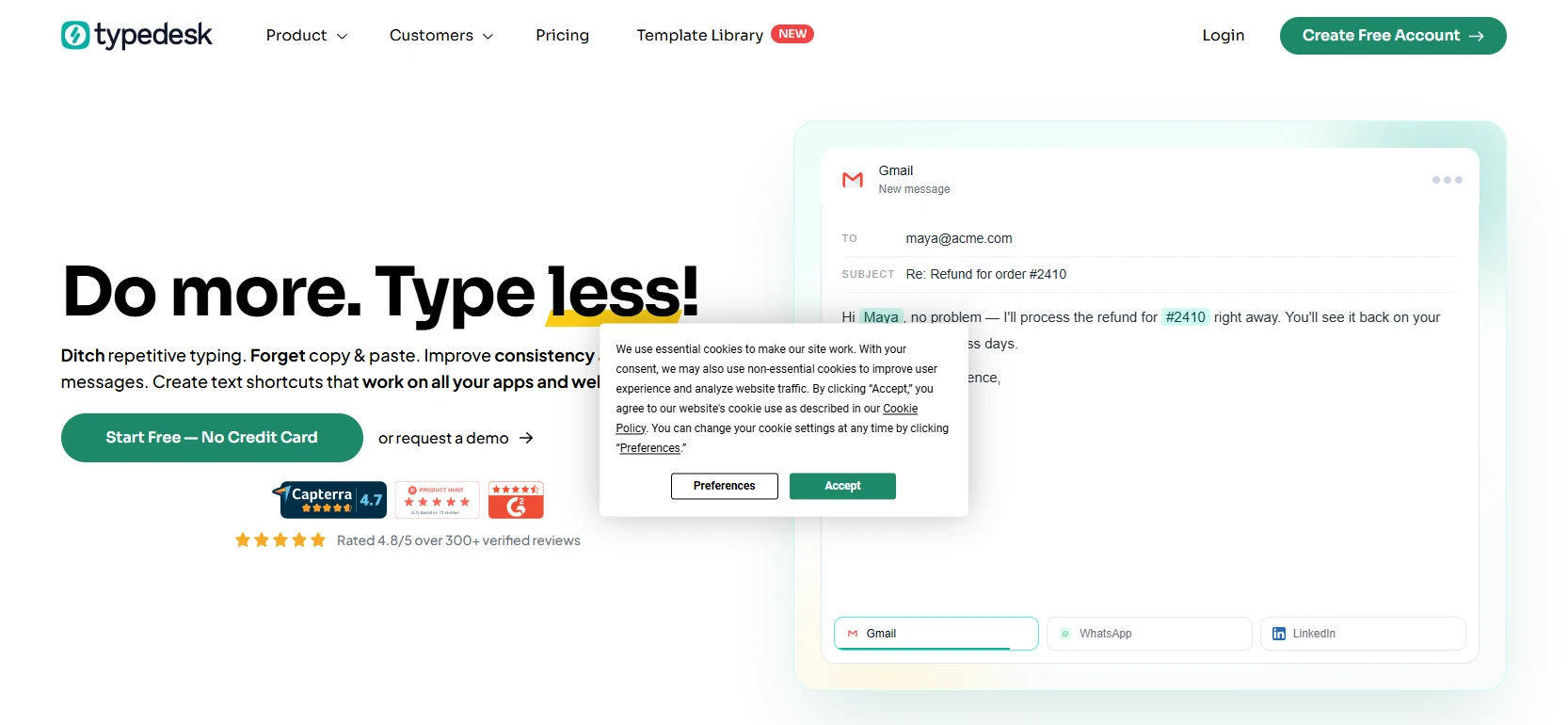
Neither one adds AI rewriting or a clipboard manager on top. You’d still need separate apps for those. See a full side-by-side breakdown in this Espanso alternative comparison.
Slashit vs. ClickUp’s Native Tools vs. TextExpander
Slashit is the only option here with AI rewriting, clipboard history, and a free plan in one app. The table below lays out exactly where each option stands.
| Feature | ClickUp Native Tools | TextExpander | Slashit |
|---|---|---|---|
| Works outside ClickUp | No | Yes | Yes |
| Trigger type | Menu or template picker | Abbreviation | Slash command |
| AI rewriting | No | No | Yes |
| Clipboard history | No | No | Yes |
| Free plan | Included with ClickUp | No | Yes, permanent |
| Starting price | Included with ClickUp | $39.96 a year | Free, premium $5 a month |
ClickUp covers structure inside its own walls. TextExpander covers plain snippets everywhere. Slashit covers snippets, AI rewriting, and clipboard history in one place, at a lower starting cost.
Notice the pattern across that last row. ClickUp’s tools come bundled with a platform you’re likely already paying for. That makes them essentially free to try first.
TextExpander asks for a subscription before you even see AI or clipboard features. Slashit asks for nothing upfront and lets premium features earn their place later.
For the full pricing and feature breakdown, see this Slashit vs TextExpander comparison.
How to Set Up a Text Expander to Work With ClickUp
Setting up a text expander alongside ClickUp takes about 30 minutes. Here’s the order that works best.
- Keep ClickUp Templates for anything that only lives inside ClickUp, like recurring task structures and doc outlines.
- Install a cross-app text expander, such as Slashit, for anything you type in more than one place.
- Recreate your 10 to 20 most-used replies first, since most people only use a small slice of their full snippet list regularly.
- Upgrade your longer fill-in-the-blank replies into dynamic templates with editable names, dates, and fields.
- Set up an AI rewrite hotkey for quick tone and length changes on the fly.
- Turn on clipboard history so you stop losing links and task IDs during the day.
Once you’ve done that, your ClickUp workflow and your outside messaging finally run on the same system. Most people notice the difference within the first week, once the muscle memory kicks in. For freelancers specifically, this guide on why freelancers need a text expander covers the setup in more depth.
Frequently Asked Questions
Does ClickUp have a text expander?
No, ClickUp does not have a native text expander. It offers Task Templates, Doc Templates, and Slash Commands instead. Those tools work well, but only inside ClickUp itself, so nothing carries over once you switch apps.
Can I use TextExpander with ClickUp?
Yes, TextExpander works inside ClickUp’s web and desktop apps. It expands saved abbreviations in any ClickUp text field, just like it does elsewhere. Keep in mind it has no free plan and skips AI rewriting entirely.
What is the ClickUp Notepad?
ClickUp Notepad is a Chrome extension for jotting quick notes. It lets you capture ideas or links while browsing, without opening a task. It doesn’t expand shortcuts into saved text, so it’s not a text expander replacement at all.
What is the best text expander for ClickUp users?
The best text expander for ClickUp users depends on what else you use. TextExpander suits teams that need mobile apps and compliance certifications like HIPAA. Slashit suits anyone who also wants AI rewriting and clipboard history built into the same app.
Is there a free text expander that works with ClickUp?
Yes, Slashit offers a permanent free plan that works alongside ClickUp. It covers core snippets, basic templates, and clipboard history at no cost, with no credit card required. Premium adds the AI rewriter starting at $5 a month.
Do ClickUp’s Slash Commands count as a text expander?
No, ClickUp’s Slash Commands are a formatting tool, not a text expander. Typing ”/” inserts headings, tables, or checklists, not saved sentences you wrote yourself. A true text expander fills in your own text, in any app, not just formatting blocks inside ClickUp.
Final Take: Native ClickUp Tools or a Dedicated Text Expander?
Use ClickUp’s native tools for anything that stays inside ClickUp. Add a dedicated text expander for everything else you type. Together, they cover your full workday instead of leaving half of it unsupported.
ClickUp was never trying to be a text expander in the first place, and that’s fine. It’s a project management tool doing project management things well. The typing gap it leaves behind is simply a job for a different, more focused tool.
If you’re ready to close that gap, Slashit’s free plan takes about a minute to set up. Check the pricing page to see which plan fits your workflow best.
// more articles
 Product
 Slashit App Has Sold Out on AppSumo
After an incredible response from the AppSumo community, Slashit's lifetime deal has officially sold out. Here's what it means for existing customers and what's next.
 Product
 5 Best Snippet Tools 2026: By Feature & Best Use Cases
Five text expanders that actually save time — Slashit, TextExpander, PhraseExpress, Typinator and Typedesk — broken down by features, pricing and the workflows they fit best.
Product 5 Best Snippet Alternatives with Free Solutions for 2026
Five free or freemium text expanders that genuinely cut repetitive typing — Slashit, Espanso, Beeftext, Text Blaze and PhraseExpress — broken down by platform, features and what they're best for.

// blog updates